
How to Add Page Numbers to a PDF (Free)
The quickest way to add page numbers to a PDF is to stamp them right in your browser: open the free CoolPDF Page Numbers tool, drop in your file, pick one of six positions and a format — plain numbers or "1 of N" — and download the result as numbered.pdf. Everything runs locally on your device: the file is never uploaded, there is no account, and the original stays untouched.
Free online tool
Skip the reading and go straight to the tool — no sign-up, no upload.
Open the free Page Numbers toolQuick steps
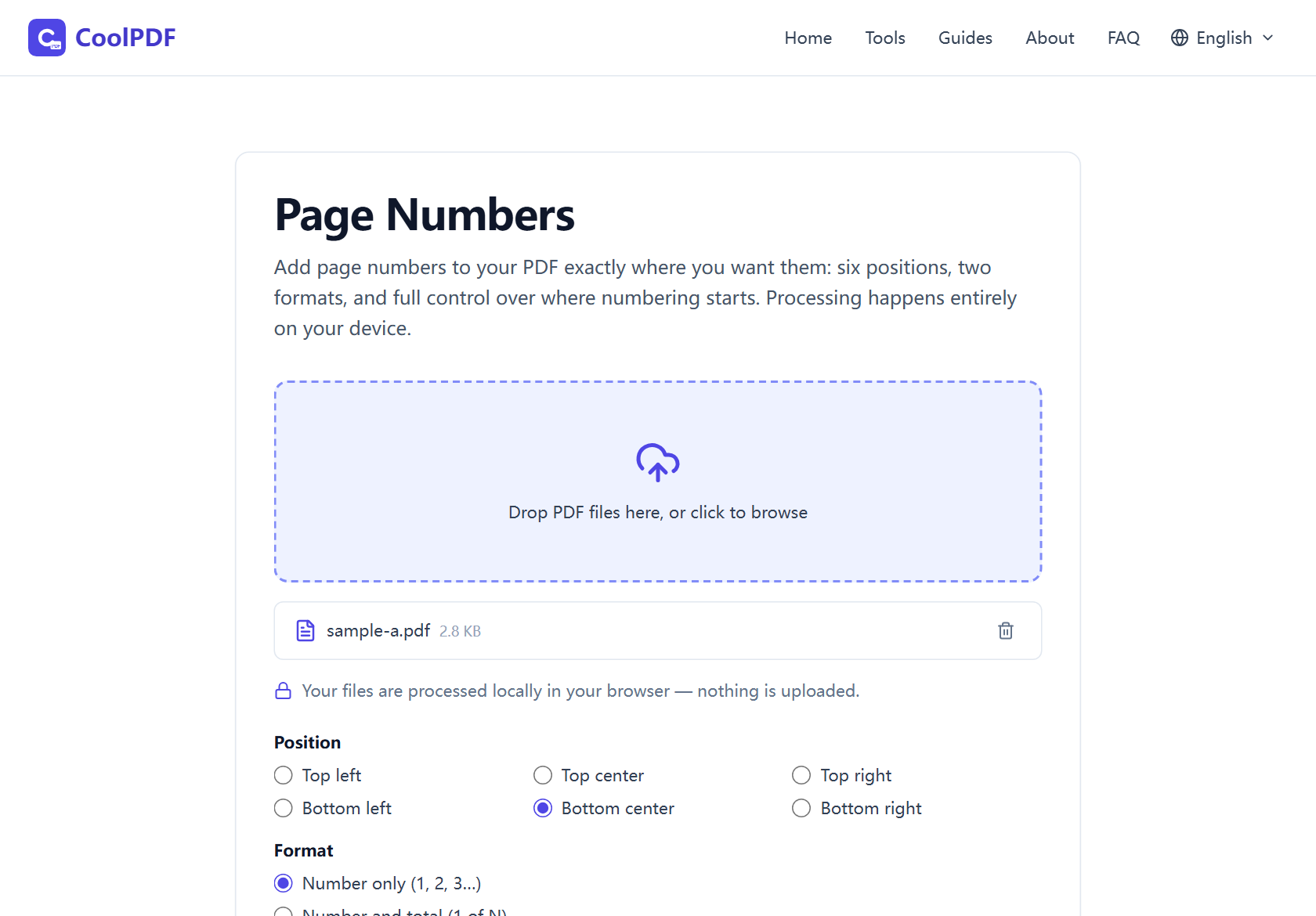
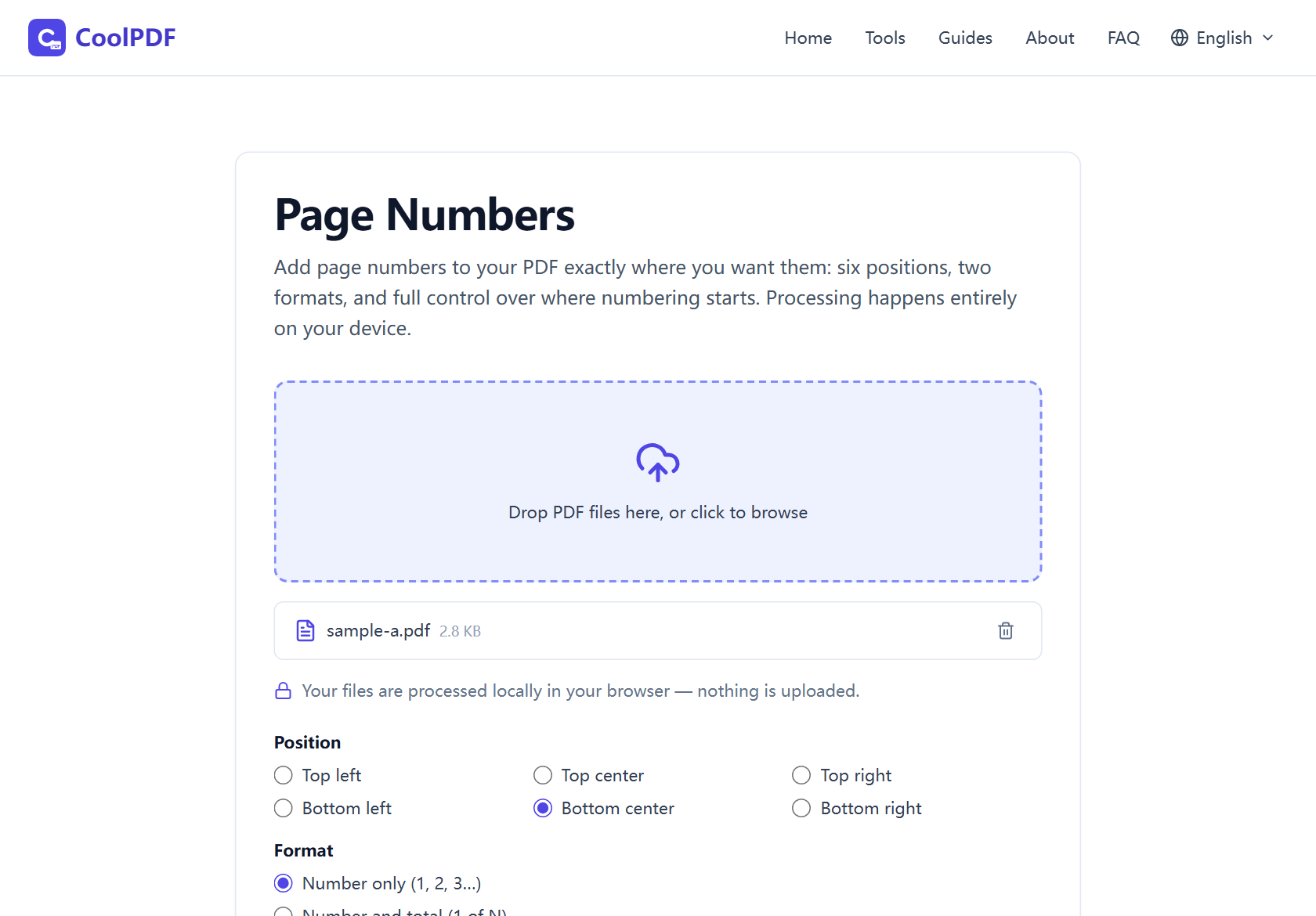
- Open the Page Numbers tool and drag your PDF onto the upload area — or click to browse. One file at a time, up to 100 MB on desktop (50 MB on mobile).
- Choose a Position — any corner, or centered at the top or bottom — and a Format: "Number only (1, 2, 3…)" or "Number and total (1 of N)".
- Optionally adjust First number, Start numbering on page, and Font size, then click "Add Page Numbers".
- Click "Download" to save the result as numbered.pdf. The original file stays untouched on your device.
Step-by-step: adding page numbers with CoolPDF
Open the Page Numbers tool — nothing to install, no account to create. Add your PDF by dragging it onto the upload area, or click to browse. The tool numbers one PDF at a time.
Two settings shape the look. Position offers six radio choices — top or bottom edge, left, center, or right — and the number is drawn 24 points (about 8 mm) in from the edge in dark gray Helvetica. Format is either "Number only (1, 2, 3…)" or "Number and total (1 of N)".
Three numeric fields control the scheme: First number (default 1), Start numbering on page (default 1 — earlier pages stay clean), and Font size (6–72 pt, default 12). Click "Add Page Numbers"; the stamping runs on your device in a second or two. On the download card, click Download — the output is always named numbered.pdf.
- One PDF at a time, up to 100 MB on desktop (50 MB on mobile)
- Six positions; numbers sit 24 pt in from the page edge
- Font size adjustable from 6 to 72 pt (default 12)
- Output is always saved as numbered.pdf
Skipping the cover page — or continuing a sequence
Most documents that need numbers also have pages that should stay clean — a cover, a title page, a table of contents. Set "Start numbering on page" to 2 and everything before it stays untouched; with "First number" at 1, the body begins at page 1.
The same two fields also continue an existing sequence: if a report was split into separate files, set "First number" to wherever the previous file ended, and this file picks up the count without a gap.
In the "1 of N" format the total is the document’s full page count — number from page 2 of a 10-page PDF and the first stamped page reads "1 of 10", not "1 of 9".
Numbering confidential documents without uploading them
Page numbers are usually the last step before a document leaves your hands: the legal filing due at midnight, the board pack, the thesis for the printer. The file is finished — and at its most sensitive — at exactly the moment most online tools ask you to upload it to someone else’s server.
CoolPDF stamps the numbers where the file already is: your browser reads the PDF, draws the digits, and saves the result back to your disk; nothing crosses the network, so there is no copy to intercept, log, or forget to delete. Load the page, disconnect from the internet, and numbering still works.
What to do after numbering
Numbers belong on the final, combined document — if your report is still several files, run it through Merge PDF first and number the merged result. If the order needs fixing first, Organize PDF rearranges pages visually.
For documents going out the door, two tools pair naturally: Add a Watermark stamps a "DRAFT" or "CONFIDENTIAL" label, and Protect PDF adds an open password before you send. Too heavy for email? Compress PDF shrinks the file without touching the numbers.
Other ways
Adobe Acrobat (paid)
Acrobat’s Edit PDF mode has a Header & Footer dialog with full control over position, font, and starting page — the polished paid option. It needs a subscription, and the web version uploads your file to Adobe’s servers. If you already have Acrobat it does a fine job; otherwise a free browser tool covers the same numbering with no install and no upload.
Microsoft Word: the conversion workaround
Word opens most PDFs by converting them into editable documents, where Insert → Page Number works as usual; export back to PDF when done. The catch is the round trip: conversion re-flows the layout, and fonts and spacing often shift. Stamping numbers onto the original PDF, as CoolPDF does, leaves the layout untouched.
LibreOffice Draw (free desktop)
The free LibreOffice suite opens PDFs in Draw, where a page-number field can sit in a header or footer — genuinely free, offline, and private. The friction: every PDF imports as an editable drawing, and complex layouts can wobble. For occasional numbering a browser tool is quicker; for heavy editing, LibreOffice earns its install.
Edge cases
The PDF is password-protected
Encrypted PDFs cannot be numbered — the tool stops with "This PDF is password-protected and cannot be processed here." If you know the password, save an open copy with Unlock PDF first and number that copy. Without it, ask the sender for an unprotected version.
The file is over the size limit
The limits — one PDF, up to 100 MB on desktop and 50 MB on mobile — exist because the whole document is held in your device’s memory while the numbers are drawn. Oversized files are refused at the upload area. The fix is usually Compress PDF: shrink the file first, then add numbers to the smaller copy.
Numbering starts beyond the last page
If "Start numbering on page" points past the last page, the tool reports that the range exceeds the page count instead of silently doing nothing — check the count in your viewer and pick a page within range. If a number lands on an existing footer, switch to the opposite edge or a free corner: numbers sit 24 points in from the edge, over whatever is already there.
Frequently asked questions
Is adding page numbers with CoolPDF really free?
Yes — every tool on CoolPDF is free forever, with no daily quotas, watermarks, or premium tiers. The numbering runs on your own device, so there is no server bill to pass on to you.
What are the limits?
One PDF at a time, up to 100 MB on desktop (50 MB on mobile). There is no page-count limit, and the font size can be set anywhere from 6 to 72 pt.
Is it safe to number confidential documents here?
Yes. Your file is processed locally in your browser and never uploaded to any server — you can even disconnect after the page loads and it still works. Closing the tab removes every trace of the document.
Can I skip the cover page or start from a different number?
Yes. Set "Start numbering on page" to 2 (or later) to leave earlier pages clean, and use "First number" to begin the visible count anywhere — handy when a document continues a sequence from another file.
Do I need to sign up or install anything?
No. There is no account, no email address, and nothing to install. Open the tool page, drop in your PDF, and number it — in any modern browser, on desktop or mobile.
Will the numbers show up in other viewers and in print?
Yes. Numbers are drawn into the PDF as real text in the standard Helvetica font — not an overlay — so they appear in every viewer and in print. The rest of the document is not re-rendered or recompressed.
Related guides & tools
Add a text or image watermark to every page of your PDF — tiled or centered, with size, color, and opacity controls — right in your browser. Free, no upload.
Open the toolStep-by-step: merge PDF files into one document right in your browser. Free, no uploads, no sign-up — reorder, combine up to 20 files, download in seconds.
Open the toolPassword-protect a PDF with AES-256 encryption, right in your browser. Set an open password and recipient permissions — no upload, free, no sign-up.
Open the toolReady to try it?
Open the Page Numbers tool and put this guide into practice — free, no sign-up.
Open Page Numbers