
How to Merge PDF Files Online (Free, No Sign-Up)
The simplest way to merge PDF files online is to combine them right in your browser: open the free CoolPDF Merge PDF tool, drop in 2–20 files, arrange them in the order you want, click Merge PDF, and download the result as merged.pdf. Unlike most online mergers, CoolPDF processes everything locally on your device — your documents are never uploaded to a server, and there is no account, no queue, and no watermark.
Free online tool
Skip the reading and go straight to the tool — no sign-up, no upload.
Open the free Merge PDF toolQuick steps
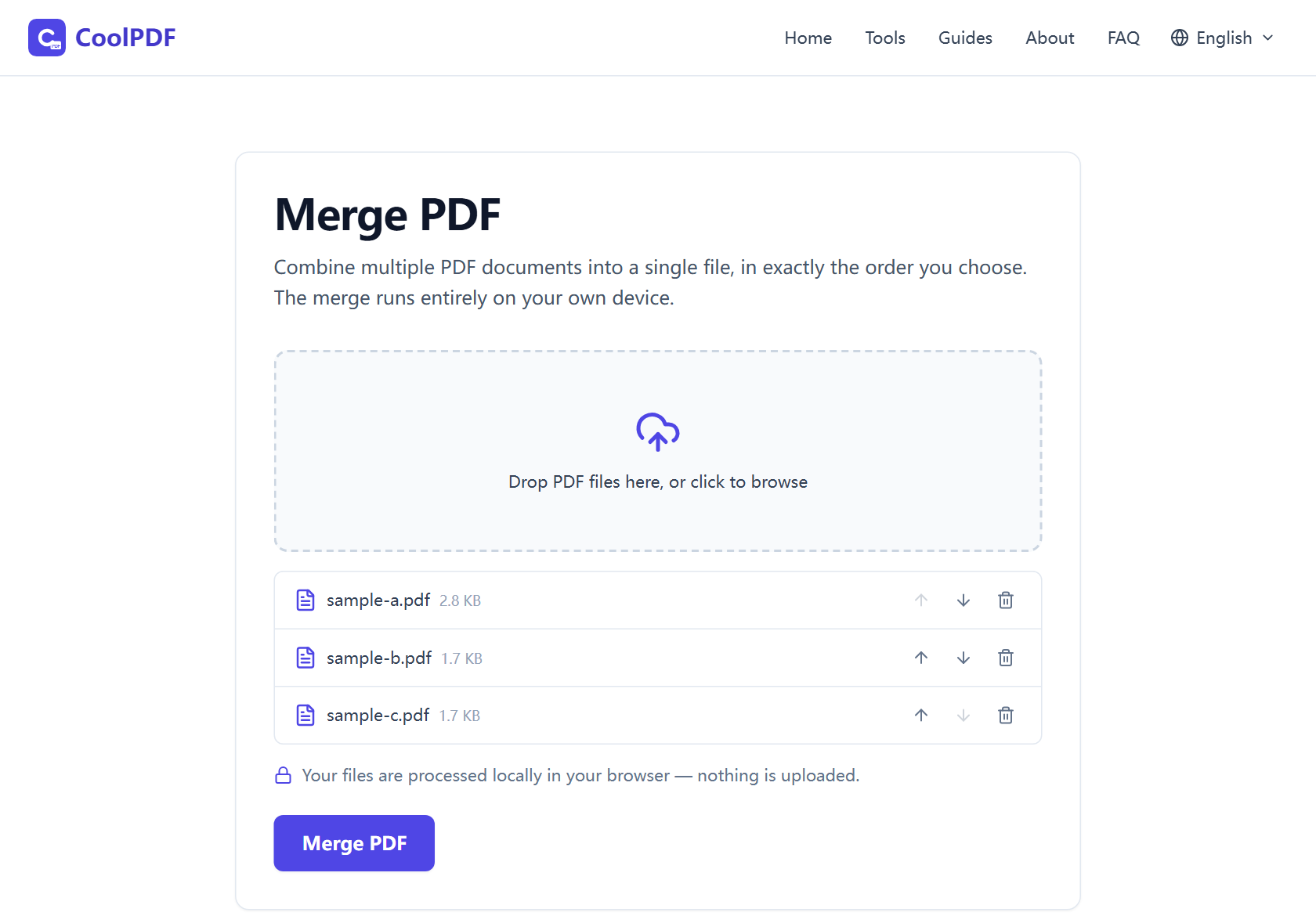
- Open the Merge PDF tool and drag 2–20 PDF files onto the upload area — or click it to browse your device instead.
- Put the files in the order you want with the up and down arrows; the list order becomes the page order of the merged document.
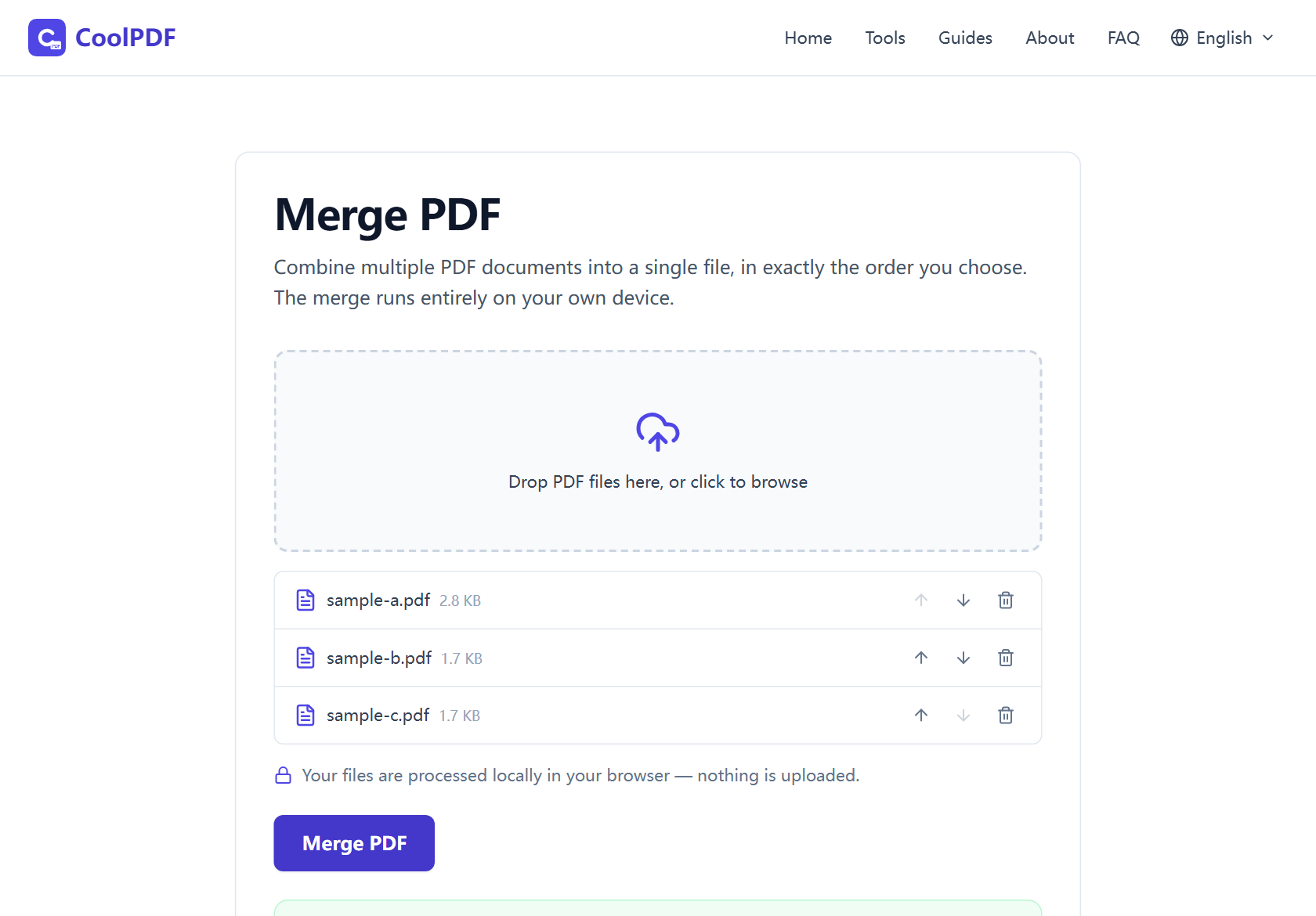
- Click the "Merge PDF" button. The files are combined locally in your browser, usually within a few seconds.
- Click "Download" to save the result as merged.pdf. Your original files stay untouched on your device.
Step-by-step: merging PDFs with CoolPDF
Open the Merge PDF tool — nothing to install, no account to create. Add files by dragging them onto the upload area, or click it to pick them from a file dialog.
Once the files are listed, set the order before you merge: every entry has up and down arrows, and the list order becomes the page order of the output — cover letter first, then the main document, then attachments. If a file slipped in by mistake, remove it with the trash icon.
Click "Merge PDF" and give your browser a few seconds — because the merge runs on your device, the time depends on file sizes, not your internet connection. When the download card appears, click Download to save the combined file; it is always named merged.pdf. The originals are never modified.
- 2–20 PDF files per merge
- Up to 100 MB per file on desktop, 50 MB on mobile
- Up to 300 MB combined across all files
- Output is always saved as merged.pdf
Why merging locally matters for contracts and financial documents
The PDFs people merge are rarely random files — they are signed contracts, payslips, tax returns, medical reports, and application dossiers. With a conventional online merger, every one of those documents is uploaded to a remote server before any processing happens, and you are asked to trust that the copies are deleted responsibly.
CoolPDF inverts that model: the merging software is delivered to your browser, and your files never leave your device. Nothing is transmitted, queued, or stored anywhere else, which makes the tool safe to use on a work laptop, on public Wi-Fi, or with documents covered by an NDA. You can even load the page, disconnect from the internet, and keep merging — it still works. Close the tab, and no trace of your documents remains.
What to do after merging
Merging is often one step in a larger cleanup. If the combined file came out heavier than expected, run it through Compress PDF to shrink it for email attachments. Need only a chapter or a specific date range from the result? Split PDF extracts exactly the pages you want into a new document.
If the page order needs fine-tuning — a scanned signature page that belongs at the end — Organize PDF lets you rearrange, rotate, or delete individual pages visually. And for long reports, Page Numbers adds consistent numbering in one pass.
Other ways
macOS Preview
On a Mac, Preview merges PDFs without extra software: open a PDF, show the thumbnail sidebar, drag additional PDFs into the list, then export with File → Export as PDF. It is free and works offline, but macOS-only, and reordering many pages by dragging thumbnails gets fiddly. CoolPDF offers the same offline privacy in any browser, on any operating system, with arrow buttons for precise ordering.
Windows: the Print to PDF workaround
Windows has no built-in PDF merger. The usual workaround is the Microsoft Print to PDF virtual printer: combine the documents in an app that can print them, then print or save the result as a new PDF. It works in a pinch, but printing re-renders everything — links, form fields, and bookmarks are flattened — so a direct merger like CoolPDF is both faster and lossless.
Adobe Acrobat (paid)
Adobe Acrobat’s Combine Files tool is the polished paid option: drag in files, reorder thumbnails, and combine, with extras like bookmark handling. It requires a subscription, a desktop install or an Adobe account, and the web version uploads your files to Adobe’s servers. If you already pay for Acrobat it is excellent — otherwise a free browser tool with no install, account, or upload covers the same ground.
Edge cases
One of the PDFs is password-protected
An encrypted PDF cannot be merged until its protection is removed — the file refuses to open without the password. If you know the password, run it through Unlock PDF first to save an unprotected copy, then merge that copy. Without the password, ask the sender for an unprotected version — there is no legitimate way around someone else’s protection.
Files are too large, or there are too many
The limits — 2–20 files, 100 MB each on desktop (50 MB on mobile), 300 MB combined — exist because every file is held in your device’s memory during the merge. If you hit the size ceiling, shrink the biggest files with Compress PDF first and merge the compressed versions. Over the file count? Split the job into batches and merge the batch results.
Bookmarks and interactive forms
Pages are copied into the merged document exactly as they are, so text, images, and annotations survive intact. Document-level extras are the exception: the outline (the bookmark sidebar) is not carried over, and interactive form fields deserve a quick check in the output. If your documents rely on bookmarks, keep the originals alongside the merged file.
Frequently asked questions
Is merging PDFs with CoolPDF really free?
Yes — every tool on CoolPDF is free forever, with no daily quotas, watermarks, or premium tiers. The merge runs on your own device, so there is no server bill to pass on to you.
What are the limits when merging?
You can combine 2–20 PDF files at once. Each file can be up to 100 MB on a desktop computer (50 MB on mobile devices), and all files together can total up to 300 MB.
Is it safe to merge confidential documents here?
Yes. Your files are processed locally in your browser and are never uploaded to any server. You can even disconnect from the internet after the page loads and the merge still works; closing the tab removes every trace of your documents.
Do I need to sign up or install anything?
No. There is no account, no email address, and nothing to install. Open the tool page, add your files, and merge — it works in any modern browser, on desktop and mobile.
Will merging reduce the quality of my PDFs?
No. CoolPDF copies pages into the new document at the object level — there is no recompression and no re-rendering. Text stays sharp and selectable, images keep their original resolution, and the output is a normal PDF that opens anywhere.
Related guides & tools
Split a PDF into single pages, custom ranges, or equal chunks — free, in your browser. No uploads, no sign-up. Step-by-step with all three split modes.
Open the toolRearrange PDF pages with drag and drop, rotate or delete pages, and download the result — all in your browser. Free, no uploads, no sign-up.
Open the toolReduce PDF file size in your browser with three quality levels (72–300 DPI). No uploads, no sign-up — files never leave your device. Free step-by-step guide.
Open the toolReady to try it?
Open the Merge PDF tool and put this guide into practice — free, no sign-up.
Open Merge PDF