
How to Rearrange, Delete, Rotate PDF Pages
The fastest way to rearrange, delete, or rotate PDF pages is to do it right in your browser: open the free CoolPDF Organize PDF tool, drop in a file, then drag the page thumbnails into place, rotate the sideways ones, and delete what you do not need. Click "Download organized PDF" and save the result as organized.pdf. Everything runs locally on your device — the file is never uploaded, and there is no account, queue, or watermark.
Free online tool
Skip the reading and go straight to the tool — no sign-up, no upload.
Open the free Organize PDF toolQuick steps
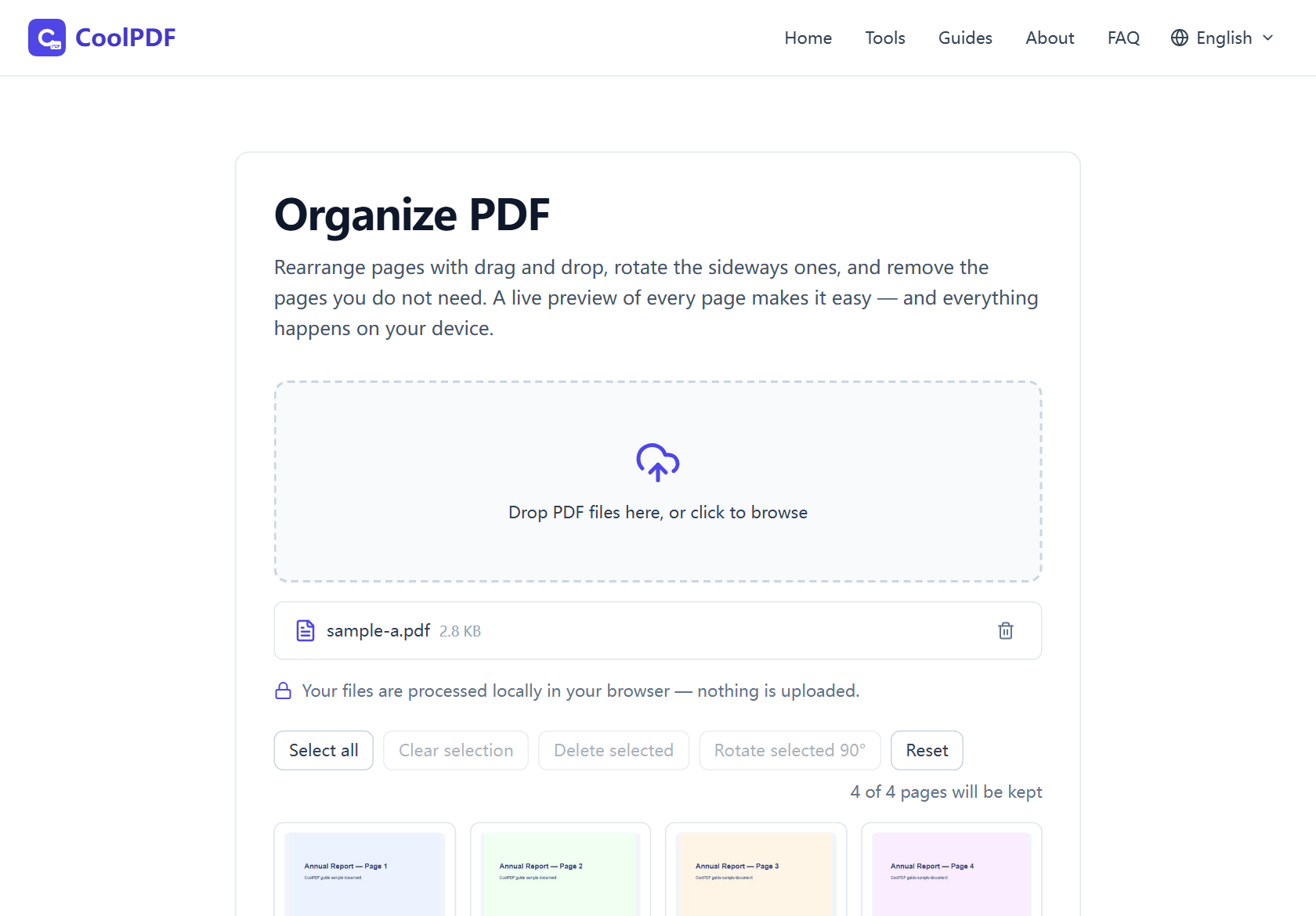
- Open the Organize PDF tool and drag one PDF (up to 100 MB) onto the upload area — or click it to browse.
- Drag the thumbnails into the order you want. The badge under each page always shows the original page number.
- Rotate a page 90° or mark it for deletion with the buttons on its thumbnail — the toolbar applies both to selected pages at once, and deletions are reversible.
- Click "Download organized PDF" and save the result as organized.pdf. Your original file is never modified.
Step-by-step: rearranging pages with CoolPDF
Open the Organize PDF tool and drop in one PDF — or click the upload area to browse. The limit is 100 MB per file on desktop and 50 MB on mobile, and only PDF files are accepted. Pages appear as thumbnails in a grid; long documents render the first 30 previews immediately, with "Load more previews" fetching 60 more at a time.
Reordering is literal: grab a thumbnail, drag it to its new position, and drop it. The badge under each page always shows the original page number, so you know where a page came from after you move it. There is no separate "apply" step — the grid order is the page order of the output.
To handle several pages at once, click thumbnails to select them, then use the toolbar: Select all, Delete selected, Rotate selected 90°. A counter keeps the tally — "18 of 24 pages will be kept" — so you know what the output will contain.
- One PDF at a time, up to 100 MB (50 MB on mobile)
- Drag-and-drop reordering with live page previews
- Rotate in 90° steps; deletion is reversible until you download
- Output is always saved as organized.pdf
Rotating and deleting pages — and getting them back
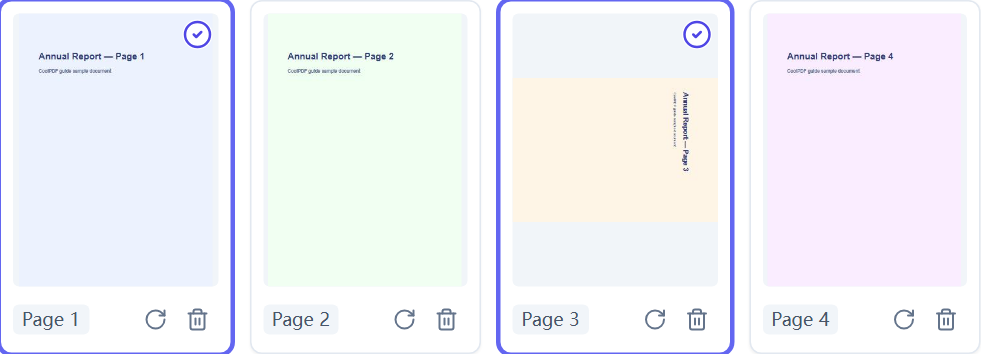
Every thumbnail carries two buttons. "Rotate page 90°" turns the page a quarter-turn clockwise per click — twice for an upside-down scan, three times to turn the other way. The rotation is written into the output, so sideways scans stay fixed in every viewer.
"Delete page" marks a page rather than removing it: the thumbnail fades to grayscale under a red "Deleted" badge, and the same spot offers "Restore page"; the Reset button undoes everything at once. And if you mark every single page, the tool refuses with "At least one page must remain in the document" instead of handing you an empty file.
Reordering confidential pages without uploading them
Organizing is usually the last step before a document leaves your hands: pulling the signed page to the front of a contract bundle, stripping blank scans out of a tax file, removing one salary page before forwarding an HR packet. These are exactly the files you least want on someone else’s server.
CoolPDF renders the previews and shuffles the pages entirely in your browser: the file is read from your own disk and the rebuilt PDF is saved straight back to it — no upload, no queue, no temporary copy. Load the page, disconnect from the internet, and it still works; close the tab and nothing of the document remains.
When organizing is only half the job
If every page needs the same rotation fix, Rotate PDF turns the whole file in one pass. When you want to pull pages out rather than delete them — a chapter to share, an invoice to archive — Split PDF extracts a page range into its own document.
A common order of operations is to merge files first, organize the combined pages here, then add page numbers so the sequence reads cleanly. Too heavy to email? Finish with Compress PDF.
Other ways
macOS Preview
On a Mac, Preview covers all three jobs: show View → Thumbnails, drag to reorder, select pages and press Delete, and use Tools → Rotate Left/Right. It is free and offline, but macOS-only, and edits the document in place — once you save, deletions are permanent. CoolPDF gives the same offline privacy in any browser, with a restore option that makes experimenting safe.
Adobe Acrobat (paid)
Acrobat’s Organize Pages view is the polished paid reference: drag thumbnails, rotate, delete, insert, and extract in one grid. It requires a subscription and a desktop install, and the web version uploads your file to Adobe’s servers. If you already pay for Acrobat it is excellent — otherwise CoolPDF covers the same ground without the account or the upload.
The print-a-page-range workaround
Any system with a PDF printer can "delete" pages by printing only the ranges you keep. It costs nothing, but printing re-renders the document — links, form fields, and bookmarks are flattened — and you can only omit pages, not reorder or rotate. For anything beyond a quick trim, a real organizer is cleaner and lossless.
Edge cases
The PDF is password-protected
A protected PDF cannot even be previewed without its password, so the tool stops at load with "This PDF is password-protected and cannot be processed here." If you know the password, save an unprotected copy with Unlock PDF first, then organize that copy.
The file is too large
The 100 MB desktop limit (50 MB on mobile) exists because the whole file is held in your device’s memory while you work. An oversized file is refused by name, with the limit shown. The usual fix is Compress PDF: shrink first, then organize the lighter copy.
Very long documents
There is no page-count cap, but previews cost memory — so only the first 30 pages render on load and "Load more previews" adds 60 per click. If you mark every page for deletion, the tool stops you with "At least one page must remain in the document" rather than producing an empty PDF.
Frequently asked questions
Is organizing PDF pages with CoolPDF really free?
Yes — every tool is free forever, with no daily quotas, watermarks, or premium tiers. The processing runs on your own device, so there is no server bill to pass on to you.
What are the limits?
One PDF at a time, up to 100 MB per file on desktop (50 MB on mobile). There is no cap on the page count — previews simply render in batches to keep memory use in check.
Is it safe to reorganize confidential documents here?
Yes. Your file is processed locally in your browser and never uploaded to any server. You can even disconnect from the internet after the page loads and keep working; closing the tab removes every trace of it.
Do I need to sign up or install anything?
No. There is no account, no email address, and nothing to install. Open the tool page, drop in a PDF, and start dragging pages — it works in any modern browser, on desktop and mobile.
Does deleting or rotating pages reduce quality?
No. Pages are copied into the new document at the object level — no recompression, no re-rendering — and rotation just sets an orientation flag every viewer respects. One caveat: the document outline (bookmark sidebar) is not carried over, so keep the original if you rely on bookmarks.
Related guides & tools
Rotate PDF pages by 90°, 180°, or 270° and save the change permanently — all pages or only the ones you list, right in your browser. Free, no uploads.
Open the toolSplit a PDF into single pages, custom ranges, or equal chunks — free, in your browser. No uploads, no sign-up. Step-by-step with all three split modes.
Open the toolStep-by-step: merge PDF files into one document right in your browser. Free, no uploads, no sign-up — reorder, combine up to 20 files, download in seconds.
Open the toolReady to try it?
Open the Organize PDF tool and put this guide into practice — free, no sign-up.
Open Organize PDF