
How to Rotate PDF Pages and Save the Result
The fastest way to rotate a PDF permanently is to do it in your browser: open the free CoolPDF Rotate PDF tool, drop in your file, pick 90°, 180°, or 270° clockwise, choose all pages or just the ones you list, and download the fixed document as rotated.pdf. The rotation is saved into the file itself — and because CoolPDF processes everything locally, your document is never uploaded to a server.
Free online tool
Skip the reading and go straight to the tool — no sign-up, no upload.
Open the free Rotate PDF toolQuick steps
- Open the Rotate PDF tool and drag your PDF onto the upload area — or click it to browse. One file at a time, up to 100 MB on desktop (50 MB on mobile).
- Pick a rotation angle — 90°, 180°, or 270° — under "Rotation angle (clockwise)".
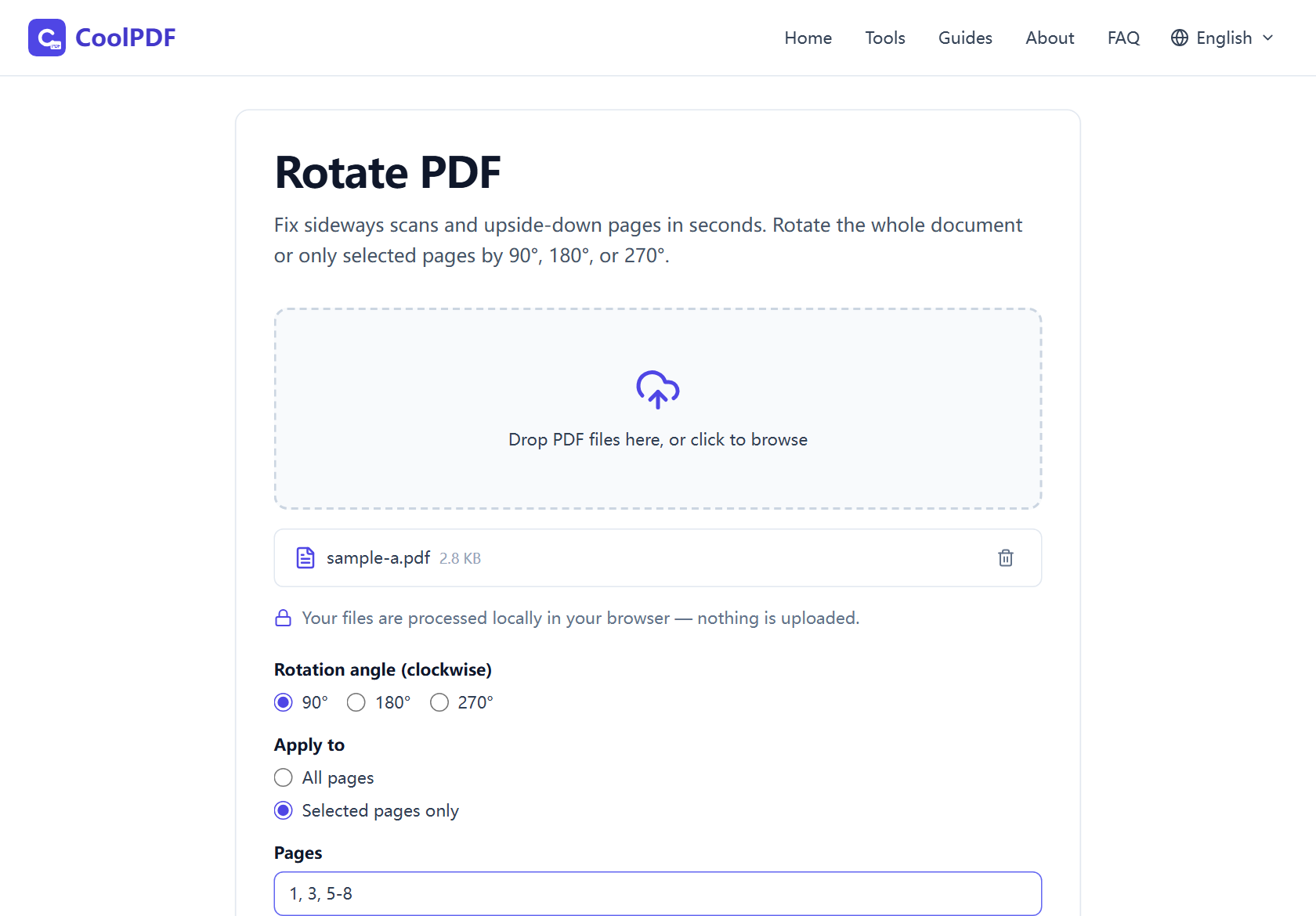
- Under "Apply to", choose "All pages" or "Selected pages only" and type the pages to turn, for example 1, 3, 5-8. Then click "Rotate PDF".
- Click "Download" on the "Your file is ready" card to save the result as rotated.pdf. The original file stays untouched.
Step-by-step: rotating a PDF with CoolPDF
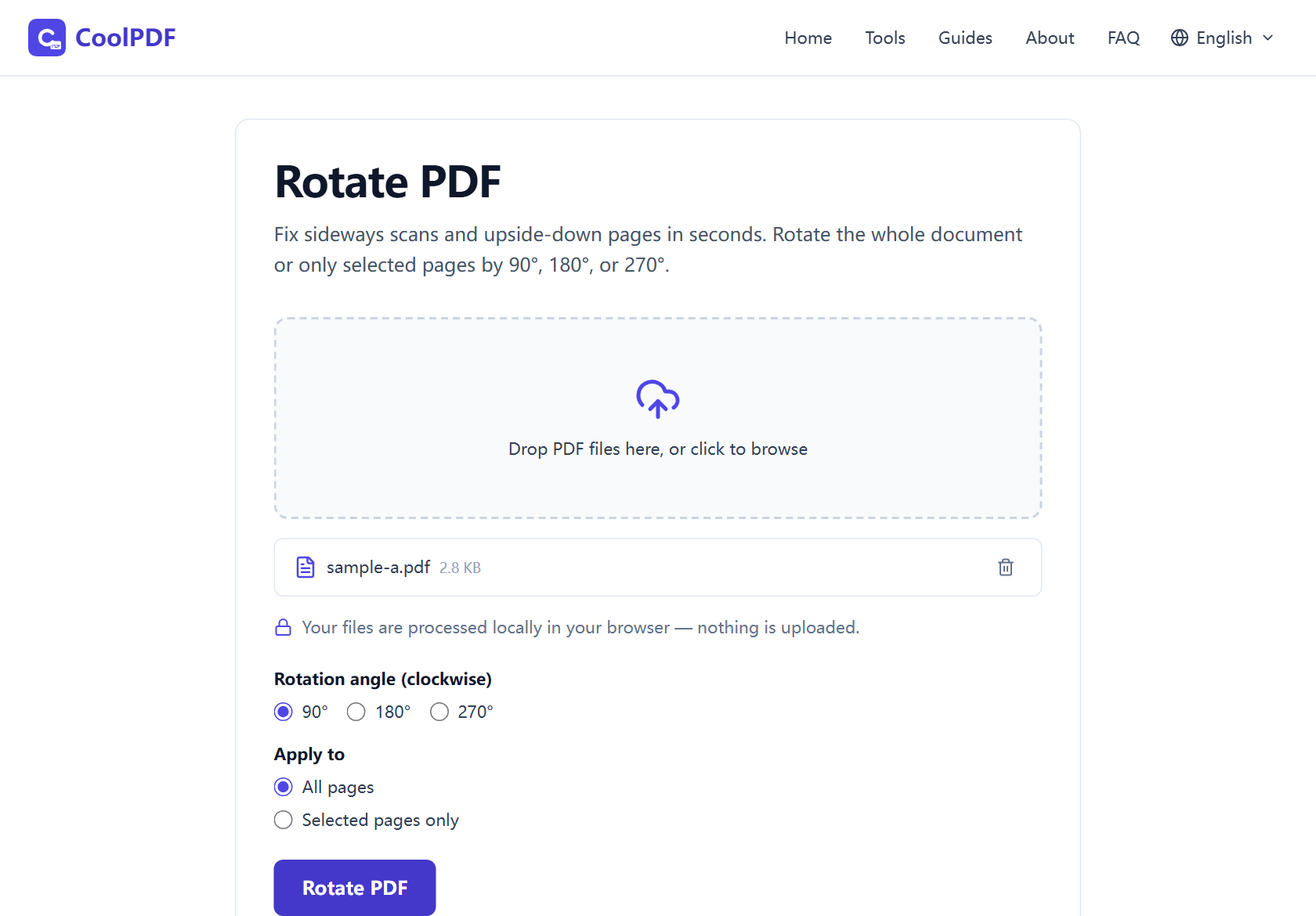
Open the Rotate PDF tool — no install, no account. Drag your PDF onto the upload area, or click it to browse; the trash icon on the file row clears the current file so you can start over.
Choose the rotation under "Rotation angle (clockwise)": 90°, 180°, or 270°. Then set the scope under "Apply to". "All pages" turns the whole document; "Selected pages only" reveals a Pages field listing exactly what to fix — single pages, ranges, or both, like 1, 3, 5-8.
Click "Rotate PDF" — because the work happens in your browser, a typical document finishes in a second or two. Click Download on the "Your file is ready" card; the result is always named rotated.pdf, and your original file is never modified.
- One PDF per run, up to 100 MB on desktop (50 MB on mobile)
- Angles: 90°, 180°, or 270° clockwise
- Page lists accept single pages and ranges: 1, 3, 5-8
- Output is always saved as rotated.pdf
Picking the right angle — and fixing mixed documents
Upside-down pages need 180°. Sideways pages need 90° or 270° — guess wrong and the page just lies on its other side, so run the tool again with the opposite angle. Rotation here is cumulative: each pass adds to the page’s existing rotation rather than replacing it, so re-running is safe and always lands upright.
Real-world PDFs are often mixed: a portrait report with one landscape chart, a scan batch where one page fed through rotated. Use "Selected pages only" for those, and combine passes when pages need different angles — rotate pages 4 and 9 by 90° first, then drop rotated.pdf back in and turn page 12 by 270°.
The classic case: scans that came out sideways
Nine times out of ten, a page that needs rotating was born on a camera or a scanner: a signed contract photographed in landscape, a form that went through the feeder at an angle, a receipt captured one page too wide. The text is fine — it is just lying on its side.
Fix the whole batch in one pass with "All pages", or pick out the odd ones with "Selected pages only" — a scan run usually means most pages are fine and one or two fed through rotated. And if the pages started as phone photos, JPG to PDF reads each image’s orientation flag and builds them upright from the start, no fix-up pass needed.
Rotate it and keep it rotated: the save trap
The most common rotation frustration goes like this: you open the PDF, click the rotate button in your viewer, the page looks right — you close it, and next time it is sideways again. Your click was fine; that button only turns your view, and viewers never write the change back into the file.
A rotation only survives sharing when it is stored in the document itself. That is what CoolPDF does: the new orientation is written into the page settings following the PDF standard, so the file opens upright in Acrobat, Preview, Chrome, and on phones — for you and for everyone you send it to.
Why rotate locally instead of uploading the scan?
Pages that need rotating almost always come from a scanner or a phone camera: signed contracts, ID documents, medical forms, receipts. Those are exactly the files you should think twice about uploading to a stranger’s server just to turn them upright.
CoolPDF keeps the whole job on your device: the rotation runs in your browser, nothing is transmitted or stored anywhere else, and closing the tab leaves no trace — you can even disconnect once the page has loaded. For documents covered by an NDA, that removes the upload question entirely.
What to do after rotating
A rotated scan is often one step in a bigger cleanup. If the file is too heavy to email, run it through Compress PDF. To reorder pages, delete blanks, or pull out a chapter, use Organize PDF or Split PDF.
And if the sideways pages started as phone photos, skip the scan-and-fix cycle next time: JPG to PDF builds a PDF straight from your images and applies each photo’s orientation automatically, so pages come out upright from the start.
Other ways
macOS Preview
On a Mac, Preview rotates PDFs without extra software: open the file, show the thumbnail sidebar, select the pages, then Tools → Rotate Left or Rotate Right — File → Save keeps the change. It is free and works offline, but macOS-only, and with no way to type a page list, fixing scattered pages means hunting through thumbnails. CoolPDF gives you the same offline privacy in any browser, with explicit page ranges.
Adobe Acrobat (paid) — and its free web version
Adobe Acrobat Pro rotates individual pages or the whole document from its Organize Pages view — the polished option if you already pay for the subscription. Adobe’s free online rotate tool exists too, but it uploads your file to Adobe’s servers and asks for an Adobe account before you can download. Without a subscription, a browser tool with no upload and no account covers the same ground.
The rotate button in your PDF viewer
Most viewers — Acrobat Reader, Chrome, Edge, Firefox — have a rotate button, but it only rotates your view. Close the file and the change is gone — the rotation was never written into the document, so the next person sees the page sideways again. For a file that opens upright everywhere, the rotation has to be saved into the PDF — which is exactly what CoolPDF does.
Edge cases
The PDF is password-protected
An encrypted PDF cannot be rotated until its protection is removed — the tool reports "This PDF is password-protected and cannot be processed here." If you know the password, save an unprotected copy with Unlock PDF first, then rotate that copy. Without the password, ask the sender for an unprotected version.
The file is too large
The limit is 100 MB per file on desktop and 50 MB on mobile — the file is held in memory during processing, and the error names the limit when you exceed it. Long scans are the usual suspects: shrink the document with Compress PDF first, then rotate the smaller file.
The page list is rejected
Two messages come from the Pages field. "Invalid page range. Use numbers and hyphens, for example 1-3, 5." means the syntax is off — a typo, or a reversed range like 8-5. "The page range exceeds the number of pages in the document." means you listed a page beyond the document’s length. Pages are numbered from 1, duplicates are harmless, and spaces or a trailing comma are ignored — so "1,3, 5 - 8" works as well as 1, 3, 5-8.
Frequently asked questions
Is rotating a PDF with CoolPDF really free?
Yes — free forever, with no daily quotas, watermarks, premium tiers, or sign-up. The rotation runs on your own device, so there is no server bill to pass on to you.
What are the limits?
One PDF at a time, up to 100 MB on desktop and 50 MB on mobile. There is no fixed page-count limit, and you can run the tool repeatedly to give different pages different angles.
How do I rotate just one page of a PDF?
Choose "Selected pages only" under "Apply to" and type the page number — just 7 for page 7. Only that page is turned; everything else stays exactly as it was. You can mix single pages and ranges freely, like 1, 3, 5-8.
Is it safe to rotate confidential documents here?
Yes. Your file is processed locally in your browser and never uploaded to any server. You can even disconnect from the internet after the page loads; closing the tab removes every trace.
Does rotating reduce the quality of my PDF?
No. Rotating only changes the page’s rotation setting — nothing is re-rendered or recompressed. Text stays selectable, images keep their original resolution, and the file size stays essentially the same.
Will the rotation stay after I download and share the file?
Yes. The new orientation is written into the PDF following the standard, so every compliant reader — Acrobat, Preview, Chrome, phone viewers — shows the pages upright. A viewer’s rotate-view button, by contrast, is never saved.
Related guides & tools
Rearrange PDF pages with drag and drop, rotate or delete pages, and download the result — all in your browser. Free, no uploads, no sign-up.
Open the toolReduce PDF file size in your browser with three quality levels (72–300 DPI). No uploads, no sign-up — files never leave your device. Free step-by-step guide.
Open the toolTurn up to 20 JPG or PNG images into one A4 PDF, right in your browser. Orientation and fit options, no uploads, no sign-up — free forever.
Open the toolReady to try it?
Open the Rotate PDF tool and put this guide into practice — free, no sign-up.
Open Rotate PDF