
How to Convert JPG Images to a PDF File
The fastest way to convert JPG images to a PDF is to do it right in your browser: open the free CoolPDF JPG to PDF tool, drop in up to 20 JPG or PNG images, choose the page orientation and placement, click Convert to PDF, and download the result as images.pdf. Because the conversion runs locally on your device, your photos are never uploaded to a server — no account, no queue, no watermark.
Free online tool
Skip the reading and go straight to the tool — no sign-up, no upload.
Open the free JPG to PDF toolQuick steps
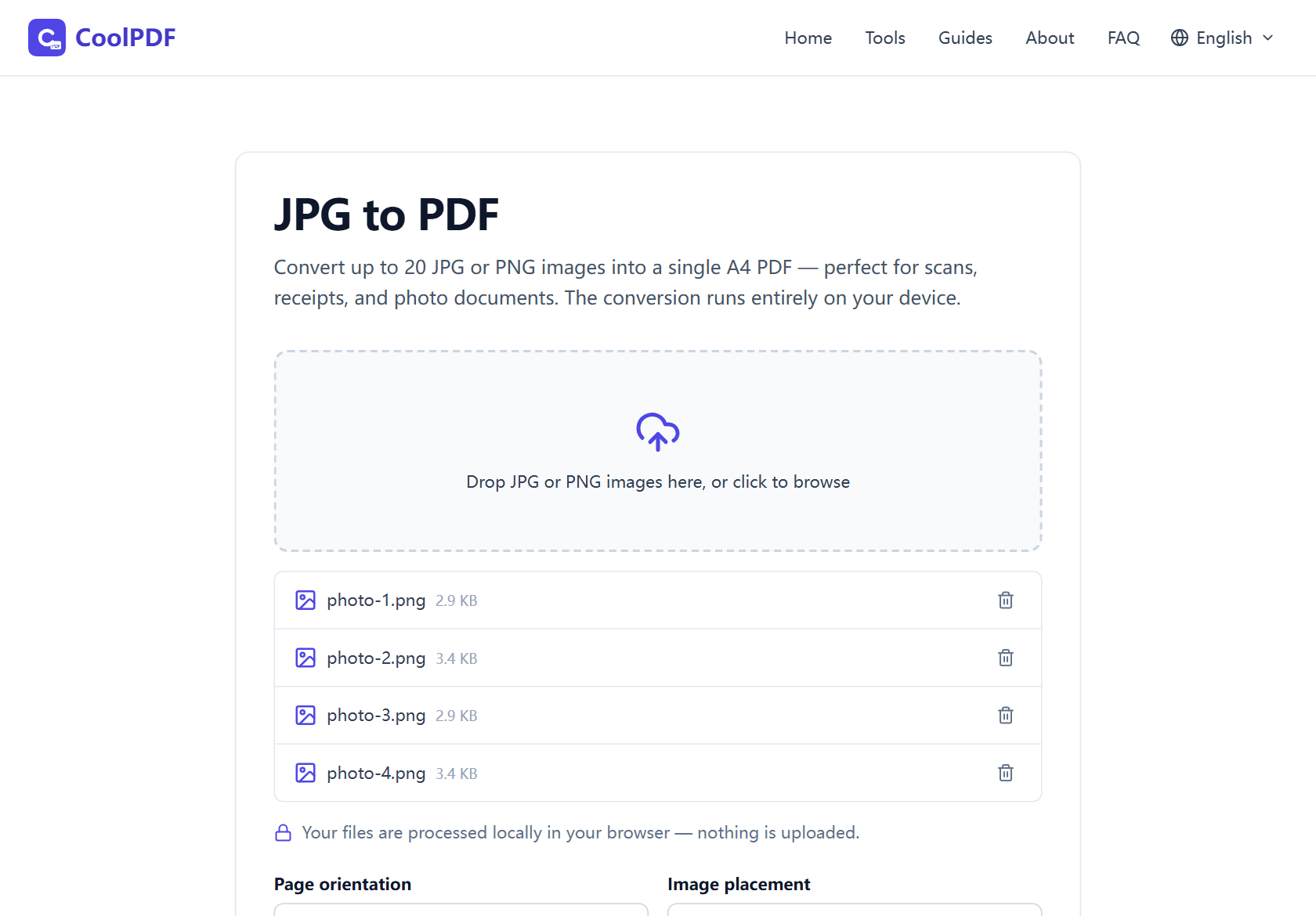
- Open the JPG to PDF tool and drag up to 20 JPG or PNG images onto the upload area — or click it to browse your device.
- Choose a Page orientation: Auto follows the aspect ratio of your first image, or force Portrait or Landscape.
- Pick an Image placement — Fit, Fill, or Original — then click "Convert to PDF". The conversion runs locally in your browser.
- Click "Download" on the result card to save the PDF as images.pdf — one image per A4 page, in the order you added the files.
Step-by-step: converting images with CoolPDF
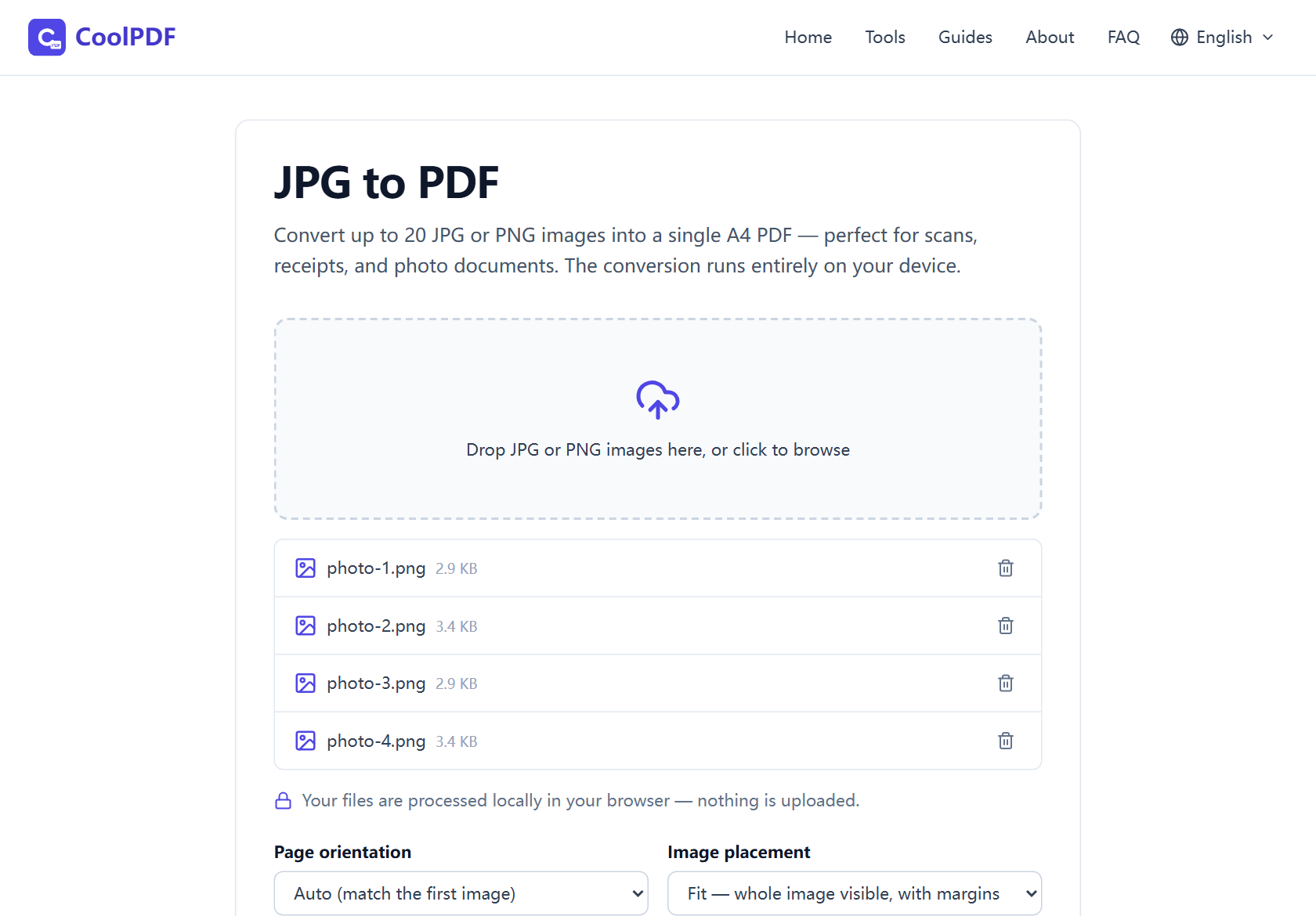
Open the JPG to PDF tool — nothing to install, no account to create. Add images by dragging them onto the upload area, or click it to pick them from a file dialog. You can add files in several batches; each entry shows the file name and size, and a trash icon removes anything added by mistake.
Decide the page order before converting: images become pages in exactly the order you added them, one per page, so add the cover photo or first scan first. There are no reorder handles here — to fix the order, remove the misplaced file and add it again.
Set the two options (covered next), then click "Convert to PDF". Because the conversion runs on your device, the time depends on image sizes, not your internet connection. When the "Your file is ready" card appears, click Download — the file is always named images.pdf, and the originals are never modified.
- Up to 20 JPG or PNG images per conversion
- Up to 100 MB per image on desktop, 50 MB on mobile
- One image per A4 page, in the order the files were added
- Output is always saved as images.pdf
Orientation and placement: getting the pages to look right
Page orientation offers Auto, Portrait, and Landscape. Auto looks at the first image: wider than tall means landscape pages, otherwise portrait. The choice applies to every page, so when mixing portrait scans with wide screenshots, either force an orientation or accept generous margins on some pages.
Image placement controls how each image sits on its A4 page. Fit — the default — scales the image proportionally until it is fully visible, centered with margins; nothing is cropped, which suits receipts and screenshots. Fill covers the whole page and crops what spills over the edges, for a full-bleed photo look. Original draws at natural pixel size (1 pixel = 1 point), centered — high-resolution photos overflow the page, so use it only when you know the dimensions.
Passport scans, receipts, whiteboards: why local conversion matters
The images people turn into PDFs are rarely casual snapshots — passport copies for a visa application, receipts for an expense report, a signed contract captured on a phone. A typical online converter uploads every image to a server, leaving your pictures on infrastructure you do not control.
CoolPDF does the same job without the upload: your browser reads the images, lays them out on A4 pages, and saves the PDF to your own disk. Nothing is transmitted, so the tool is safe for identity documents and NDA material — it even works offline once loaded. Phone photos get extra care: the EXIF orientation tag is applied automatically, so portrait shots never land sideways.
What to do with your new PDF
Converting is often one step in a larger job. If the PDF came out too heavy to email, run it through Compress PDF. To combine it with an existing document, such as scanned pages appended to a contract, use Merge PDF.
If the page order is not right after all, Organize PDF rearranges, rotates, or deletes pages visually instead of reconverting. And for the reverse direction — pulling the pages of a PDF back out as images — PDF to JPG does exactly that.
Other ways
Windows: Print to PDF
Windows converts images without extra software: select the JPGs in File Explorer, right-click, choose Print, and pick the Microsoft Print to PDF printer with a full-page photo layout. It is free and offline, but layout controls are basic and ordering follows your selection. CoolPDF gives you explicit orientation and fit controls with the same offline privacy.
macOS Preview
On a Mac, open the images together in Preview, then File → Print → Save as PDF. It is free and offline, but macOS-only, and margin or full-bleed options are buried in the print dialog. CoolPDF does the same job in any browser, with the fit options up front.
Adobe’s online converter
Adobe’s web-based JPG to PDF converter is polished: drag in images, convert, download. But images are uploaded to Adobe’s servers, and heavy use pushes you toward an account with a limited free tier. A local tool covers the same ground with no upload and no quota.
Edge cases
WebP, HEIC, and GIF files are skipped
The tool accepts only JPG and PNG — anything else you drop is skipped, with a notice saying so. iPhone photos saved as HEIC are the common case: set the camera to Most Compatible in iOS settings for future shots, and export existing HEIC photos as JPEG before converting.
Pages come out in the wrong order
Images become pages in the order you added them, and the list has no reorder buttons. The quick fix: remove the misplaced file and add it again — it lands at the end. Already converted? Open the PDF in Organize PDF and drag the pages into place visually.
An image exceeds the size limit
Each image can be up to 100 MB on desktop and 50 MB on mobile — the limit exists because every image is held in memory during conversion. Oversized files are rejected with a message naming the file and the limit. If a photo exceeds it, resize or re-save it at a lower resolution first; the PDF will be smaller as a bonus.
Frequently asked questions
Is converting JPG to PDF with CoolPDF really free?
Yes — every tool on CoolPDF is free forever, with no daily quotas, watermarks, or premium tiers. The conversion runs on your own device, so there is no server bill to pass on to you.
How many images can I convert at once, and how big can they be?
Up to 20 JPG or PNG images per conversion. Each image can be up to 100 MB on a desktop computer, or 50 MB on mobile devices.
Are my photos uploaded anywhere?
No. Your images are processed locally in your browser and never leave your device. You can even disconnect from the internet after the page loads and the conversion still works; closing the tab removes every trace of your files.
Do I need to sign up or install anything?
No. There is no account, no email address, and nothing to install. Open the tool page, add your images, and convert — it works in any modern browser, on desktop and mobile.
Will converting reduce the quality of my images?
No. Images are embedded into the PDF exactly as they are — no recompression. The one exception is a phone photo with an EXIF rotation tag: it is re-encoded once at high quality so it appears upright.
Related guides & tools
Turn PDF pages into JPG or PNG images at 72, 150, or 300 DPI — free, in your browser, no uploads, no sign-up. Includes DPI and page-range tips.
Open the toolStep-by-step: merge PDF files into one document right in your browser. Free, no uploads, no sign-up — reorder, combine up to 20 files, download in seconds.
Open the toolReduce PDF file size in your browser with three quality levels (72–300 DPI). No uploads, no sign-up — files never leave your device. Free step-by-step guide.
Open the toolReady to try it?
Open the JPG to PDF tool and put this guide into practice — free, no sign-up.
Open JPG to PDF