
How to Convert PDF to JPG or PNG Images
The fastest way to convert a PDF to JPG or PNG images is to render it right in your browser: open the free CoolPDF PDF to JPG tool, add your PDF, pick a format and a resolution of 72, 150, or 300 DPI, click Convert to images, and download the result. Everything runs locally on your device — the document is never uploaded, and there is no account, no queue, and no watermark.
Free online tool
Skip the reading and go straight to the tool — no sign-up, no upload.
Open the free PDF to JPG toolQuick steps
- Open the PDF to JPG tool and drag one PDF onto the upload area — or click it to browse (up to 100 MB on desktop, 50 MB on mobile).
- Choose the image format — "JPG — smaller files" or "PNG — lossless, larger files" — and the resolution: 72, 150, or 300 DPI.
- Keep "All pages", or switch to "Selected pages" and type a range like 1-3, 5, then click "Convert to images".
- Download the result: one page saves directly as an image like page-1.jpg; several pages arrive as images.zip with one image per page.
Step-by-step: converting a PDF with CoolPDF
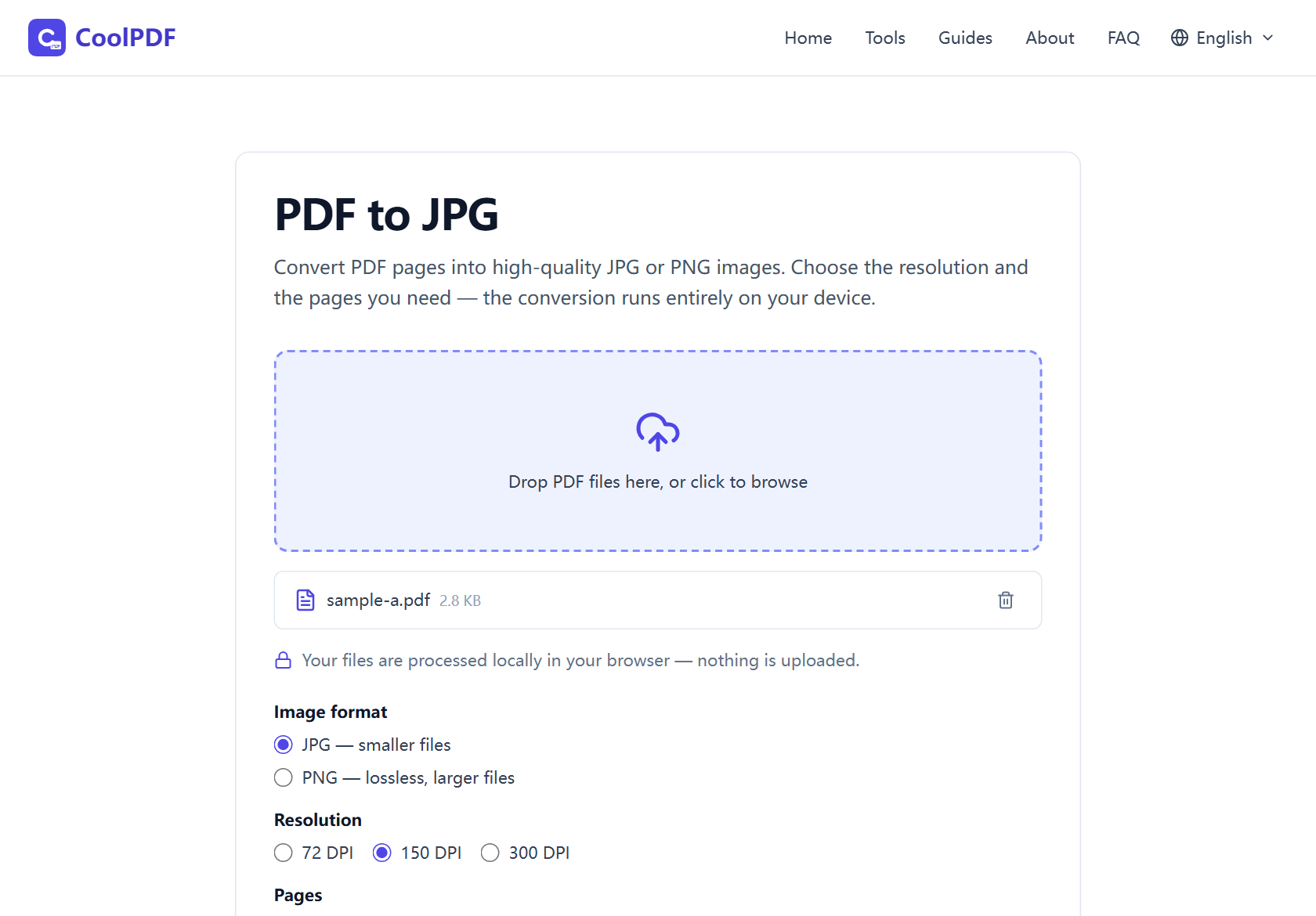
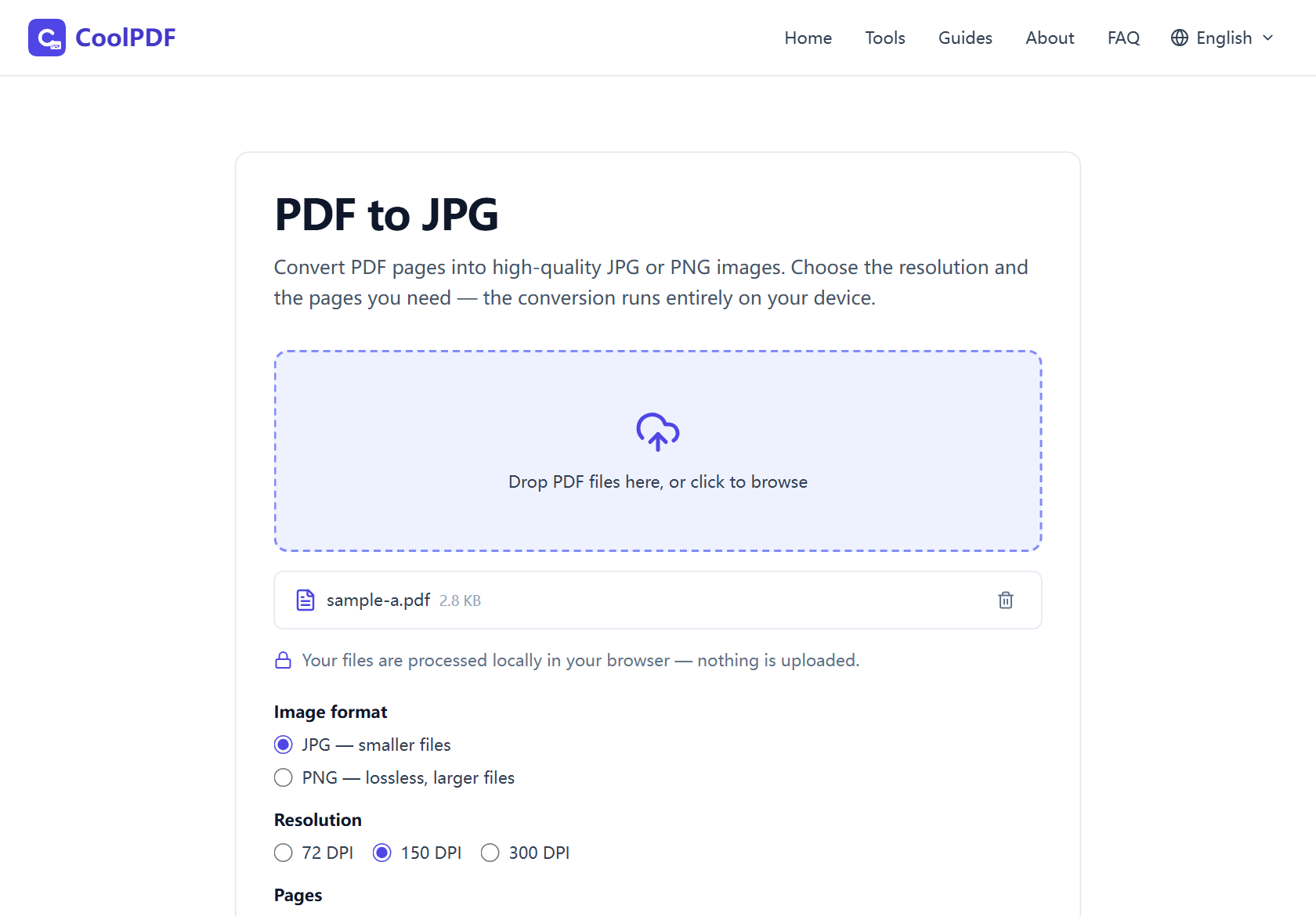
Open the PDF to JPG tool and add your document: drag the file onto the upload area, or click it to browse. The tool takes one PDF at a time — once loaded, the file name and size appear above the options, with a trash icon to remove it.
Three option groups follow. Image format is "JPG — smaller files" or "PNG — lossless, larger files"; Resolution offers 72, 150, and 300 DPI; under Pages, "All pages" converts everything while "Selected pages" takes a range like 1-3, 5. Each page’s own rotation is respected, so sideways pages come out upright.
Click "Convert to images" — a progress line counts through the pages ("Rendering page 1 of 12…"), and since rendering runs on your device, speed depends on hardware and DPI, not your connection. Then click Download: one page saves as an image named like page-1.jpg; two or more are packed into images.zip, one image per page. The original PDF is never modified.
- One PDF per conversion
- Up to 100 MB per file on desktop, 50 MB on mobile
- Up to 200 pages converted per run
- Single page saves as page-N.jpg or .png; several pages arrive as images.zip
JPG or PNG, and what the DPI numbers mean
JPG is the right default for most documents: CoolPDF encodes it at 92% quality, visually indistinguishable for text, scans, and photos at a fraction of the size. PNG is lossless — every pixel exactly as rendered — keeping line art and small text perfectly crisp, but files can be several times larger. Heading for email, chat, or an upload form? JPG. Archiving a diagram-heavy page? PNG.
Resolution controls how many pixels each page gets: 72 DPI matches the PDF’s on-screen size, 150 is the default for documents, 300 is print quality — and the tool itself warns that 300 DPI is slow and memory-hungry on long documents. Pages are drawn on a white background, so transparent areas come out white, not black. Devices also cap canvas size (iOS tops out near 16.7 million pixels): a page that would exceed the limit is rendered at lower resolution, with a notice afterwards.
Why convert pages to images without uploading them
People rarely rasterize a PDF for fun — the document is usually going somewhere that demands a picture: a portal that only accepts JPG or PNG, a chat where the recipient cannot open PDFs, a slide deck that needs one page as a visual. And the pages that take this route are often the sensitive ones: ID cards, certificates, signed letters, invoices.
A conventional online converter uploads the whole document to a remote server before any images come back. CoolPDF works the other way around: the renderer — the same class of engine that powers desktop readers — comes to your browser, and the file is read from your disk, rasterized on your device, and saved straight back. Nothing crosses the network, so it is safe on a work laptop or public Wi-Fi, and it even works offline once the page has loaded.
Before and after: useful combinations
If your PDF is over the size limit, shrink it first with Compress PDF and convert the compressed copy. Password-protected? Unlock PDF saves an unprotected copy you can convert, as long as you know the password.
Need just a chapter from a long report? Type a range under Selected pages instead of converting everything — or Split PDF can extract those pages as a standalone PDF first. The reverse trip works too: JPG to PDF turns photos and scans back into a single document.
Other ways
macOS Preview
On a Mac, open the PDF in Preview, go to File → Export, and choose JPEG or PNG with a resolution slider — free, offline, good quality. The catch: it exports only the page currently shown, so 30 pages mean 30 exports. CoolPDF converts up to 200 pages in one pass, in any browser.
Adobe Acrobat (paid)
Acrobat’s Export To → Image flow is the polished paid route, with formats from JPEG to TIFF. It needs a subscription and a desktop install, and the web version uploads files to Adobe’s servers. If you already pay for Acrobat it is excellent — otherwise a free browser tool with no install, account, or upload covers the same ground.
The Windows screenshot workaround
Windows has no built-in PDF-to-image converter; the fallback is zooming the page in your reader and capturing it with the Snipping Tool or Win+Shift+S. Free and offline, but quality caps at screen resolution, one screen at a time — a 300 DPI render is far sharper, and CoolPDF does every page in one run.
Edge cases
The PDF is password-protected
An encrypted PDF cannot be rendered at all — the tool shows "This PDF is password-protected and cannot be processed here." If you know the password, run it through Unlock PDF first and convert the unprotected copy. Without the password, ask the sender for an open version — there is no legitimate way around someone else’s protection.
The file is over the size limit
The upload area refuses files above 100 MB on desktop (50 MB on mobile) — the whole document is held in your device’s memory while rendering. The fix is usually Compress PDF: shrink the file, then convert the compressed copy. Scans in particular shrink dramatically with no visible change.
More than 200 pages, or the range is rejected
The tool converts at most 200 pages per run — past that it stops with "This document has too many pages for this tool — the limit is 200 pages." The cap applies to the pages converted at once, not the document, so a 500-page file works in batches: 1-200, then 201-400, then 401-500. If a range is rejected, check the syntax — numbers and hyphens like 1-3, 5, within the page count.
Frequently asked questions
Is converting PDF to JPG with CoolPDF really free?
Yes — every tool is free forever, with no daily quotas, watermarks, or premium tiers. The conversion runs on your own device, so there is no server bill to pass on to you.
What are the limits?
One PDF at a time, up to 100 MB on desktop (50 MB on mobile), and up to 200 pages per run — longer documents can be converted in batches with page ranges.
Is it safe to convert confidential documents here?
Yes. Your file is rendered locally in your browser and never uploaded. Disconnect after the page loads and the conversion still works; closing the tab removes every trace of the document.
Do I need to sign up or install anything?
No account, no email address, nothing to install. Open the tool page, add your PDF, and convert — it works in any modern browser, on desktop and mobile.
Should I choose JPG or PNG — and which DPI?
JPG is encoded at 92% quality — visually identical for documents and photos, and much smaller. PNG is lossless but larger; pick it for line art and pixel-perfect archives. For resolution: 72 DPI for screen use, 150 for documents, 300 for print-quality output on a few pages.
Related guides & tools
Turn up to 20 JPG or PNG images into one A4 PDF, right in your browser. Orientation and fit options, no uploads, no sign-up — free forever.
Open the toolReduce PDF file size in your browser with three quality levels (72–300 DPI). No uploads, no sign-up — files never leave your device. Free step-by-step guide.
Open the toolStep-by-step: remove a PDF password in your browser — the file and password never leave your device. Free, no sign-up; download the result as unlocked.pdf.
Open the toolReady to try it?
Open the PDF to JPG tool and put this guide into practice — free, no sign-up.
Open PDF to JPG