
How to Compress a PDF to Reduce File Size
The fastest way to compress a PDF is to do it right in your browser: open the free CoolPDF Compress PDF tool, drop in a file up to 150 MB, pick one of three quality levels, click Compress PDF, and download the result as compressed.pdf. Unlike most online compressors, CoolPDF runs the Ghostscript engine locally on your device — your document is never uploaded, and there is no account, no queue, and no watermark.
Free online tool
Skip the reading and go straight to the tool — no sign-up, no upload.
Open the free Compress PDF toolQuick steps
- Open the Compress PDF tool and drag your PDF onto the upload area — or click it to browse (one file at a time, up to 150 MB on desktop).
- Choose a compression level: Extreme for the smallest size, Recommended for a balance (the default), or Light for print quality.
- Click "Compress PDF" — the first run downloads the ~15 MB compression engine once, then it is cached.
- Click "Download" to save the result as compressed.pdf and compare the before-and-after sizes — the original file stays untouched.
Step-by-step: compressing a PDF with CoolPDF
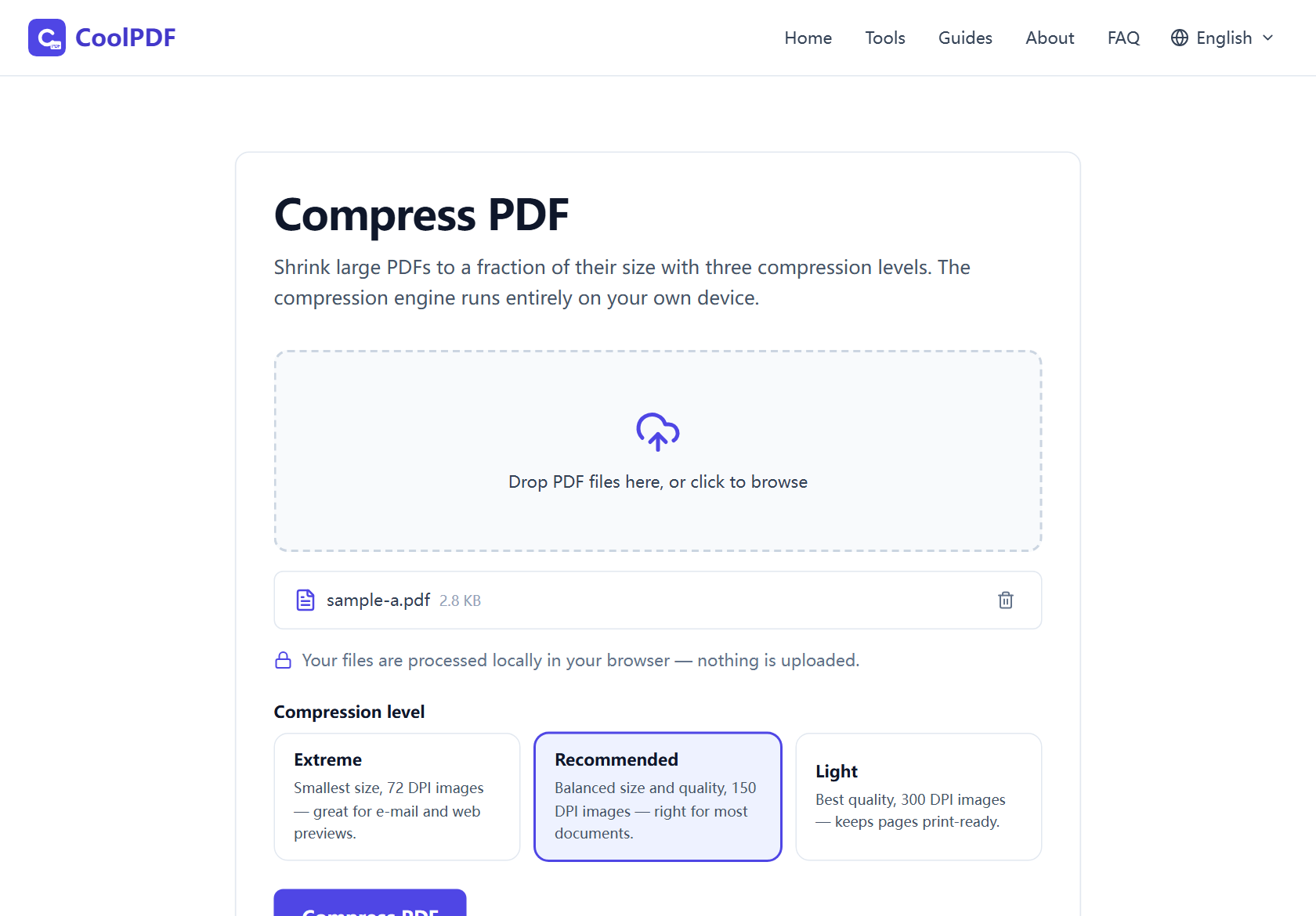
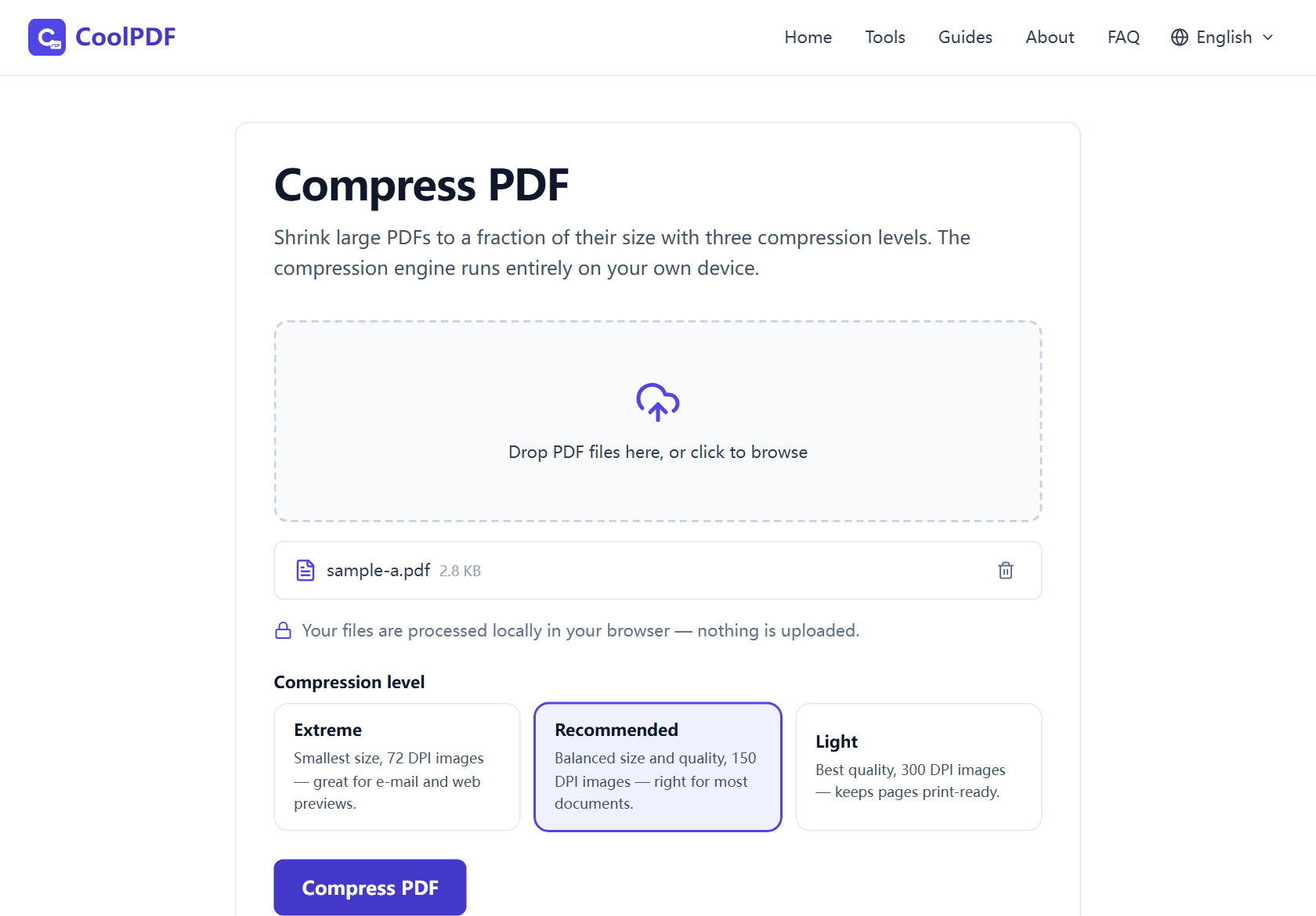
Open the Compress PDF tool and add your file: drag it onto the upload area, or click the area to browse. The row under the dropzone confirms the file name and size before anything runs.
Now pick a compression level. The three cards spell out the trade-off: Extreme for the smallest possible file, Recommended — preselected — for a balance, and Light when the document will be printed. Not sure? Stay on Recommended.
Click "Compress PDF". The first run downloads the compression engine — about 15 MB of Ghostscript as WebAssembly — which is cached afterwards, so later runs start instantly. You see page-by-page progress while it works; large files can take several minutes. The download card shows the before-and-after sizes and the percentage saved — click Download to save compressed.pdf.
- One PDF at a time
- Up to 150 MB per file on desktop, 50 MB on mobile
- Three levels: Extreme (72 DPI), Recommended (150 DPI), Light (300 DPI)
- Output is always saved as compressed.pdf
Choosing the right compression level
The three levels are Ghostscript’s standard downsampling presets; what changes is the DPI your images end up at. Extreme drops to 72 DPI — fine on screen, soft in print. Recommended lands at 150 DPI: crisp on screen, fine for casual printouts, right for most documents. Light keeps 300 DPI, print-ready, and mainly re-encodes images more efficiently — modest savings, no visible change. Text and vector graphics stay untouched at every level.
One honest caveat: compression can only shrink what is shrinkable. A text-heavy PDF exported from Word has almost no image data, so even Extreme may trim only a few percent, while a 40-page phone scan can drop to a tenth of its size.
Compressing sensitive documents without uploading them
The PDFs that need compressing are usually on their way somewhere: a portfolio to a recruiter, bank statements to a landlord, medical reports to an insurer — and most mail servers bounce attachments over about 25 MB, so shrinking is often mandatory, not cosmetic. A conventional online compressor, meanwhile, makes you upload that very document to a stranger’s server first.
CoolPDF runs the same Ghostscript engine print shops have trusted for decades, compiled to WebAssembly and executed on your own machine: the file is read from disk, rebuilt smaller, and handed back — nothing is transmitted. Once the engine is cached you can even go offline and keep compressing; closing the tab leaves no trace.
When compressing alone is not enough
If the file is still too big after Extreme, the honest fix is to shrink the content, not the pixels. Extract the pages you need with Split PDF — one chapter, not the whole report — or delete filler pages with Organize PDF, then compress the leaner document. Bundling scans instead? Merge them into one PDF first and compress the bundle afterwards.
If the compressed file is about to travel, lock it first: Protect PDF adds a password the same browser-local way, so an intercepted attachment stays unreadable.
Other ways
macOS Preview
Preview on macOS shrinks PDFs without extra software: open the file, choose File → Export, and pick the "Reduce File Size" Quartz filter. Free and offline, but a single blunt setting — image quality often suffers, with no level to dial. CoolPDF gives the same offline privacy in any browser, with three explicit quality levels.
Adobe Acrobat (paid)
Adobe’s online compressor is polished, but it uploads your files to Adobe’s servers and nudges you toward a paid Acrobat plan; the desktop app’s Reduced Size PDF command requires that subscription too. If you already pay for Acrobat, great — otherwise a free browser tool with no upload, install, or account covers the same ground.
The Print to PDF workaround
A common DIY trick is "printing" the PDF to a new file with Microsoft Print to PDF or the browser’s print dialog. It sometimes reduces size, but re-rendering flattens the document — links, form fields, and bookmarks are lost — so it is a last resort; a dedicated compressor like CoolPDF rewrites the file without destroying its structure.
Edge cases
The PDF is password-protected
An encrypted PDF fails with "This PDF is password-protected and cannot be processed here." Know the password? Remove the protection with Unlock PDF first, then compress the unlocked copy. Without it, ask the sender for an unprotected version.
The file is over the size limit
The dropzone rejects files above 150 MB on desktop (50 MB on mobile), because the whole document is held in your device’s memory while it is rebuilt. The workaround: split the PDF with Split PDF, compress each part, then merge them back. Large scans also take time — after three minutes a "Still working" note appears; let it finish.
The result came out larger than the original
Occasionally the compressed file comes out bigger, and the tool says so, suggesting the Light level. That happens with already-optimized PDFs — output from another compressor, or pages of mostly vector graphics. Keep your original; there is nothing left to squeeze.
Frequently asked questions
Is compressing PDFs with CoolPDF really free?
Yes — every tool on CoolPDF is free forever, with no daily quotas, watermarks, or premium tiers. The compression runs on your own device, so there is no server bill to pass on to you.
What are the limits when compressing?
One PDF at a time, up to 150 MB on desktop or 50 MB on mobile; very large documents can take several minutes, so keep the tab open until the download card appears.
Is it safe to compress confidential documents here?
Yes. The engine runs locally in your browser; your file is never uploaded. Once the engine is cached you can even compress offline; closing the tab removes every trace.
Do I need to sign up or install anything?
No account, no email address, nothing to install. The only download is the ~15 MB compression engine on the first run, cached afterwards so it starts instantly.
Will compression reduce the quality of my PDF?
Text and vector graphics stay exactly as they are; only images are downsampled to the level’s DPI — 72 (Extreme), 150 (Recommended), or 300 (Light). Pick Light for printing; Recommended is right for screen sharing.
Related guides & tools
Step-by-step: merge PDF files into one document right in your browser. Free, no uploads, no sign-up — reorder, combine up to 20 files, download in seconds.
Open the toolSplit a PDF into single pages, custom ranges, or equal chunks — free, in your browser. No uploads, no sign-up. Step-by-step with all three split modes.
Open the toolPassword-protect a PDF with AES-256 encryption, right in your browser. Set an open password and recipient permissions — no upload, free, no sign-up.
Open the toolReady to try it?
Open the Compress PDF tool and put this guide into practice — free, no sign-up.
Open Compress PDF