
How to Password Protect a PDF (AES-256)
To password-protect a PDF, open the free CoolPDF Protect PDF tool, drop in your file, type a password of at least six characters twice, choose what recipients may do — printing, copying, editing — and click Protect PDF to download protected.pdf. The encryption is AES-256, the strongest the PDF standard defines, and it runs entirely on your device: the file and the password never leave your browser.
Free online tool
Skip the reading and go straight to the tool — no sign-up, no upload.
Open the free Protect PDF toolQuick steps
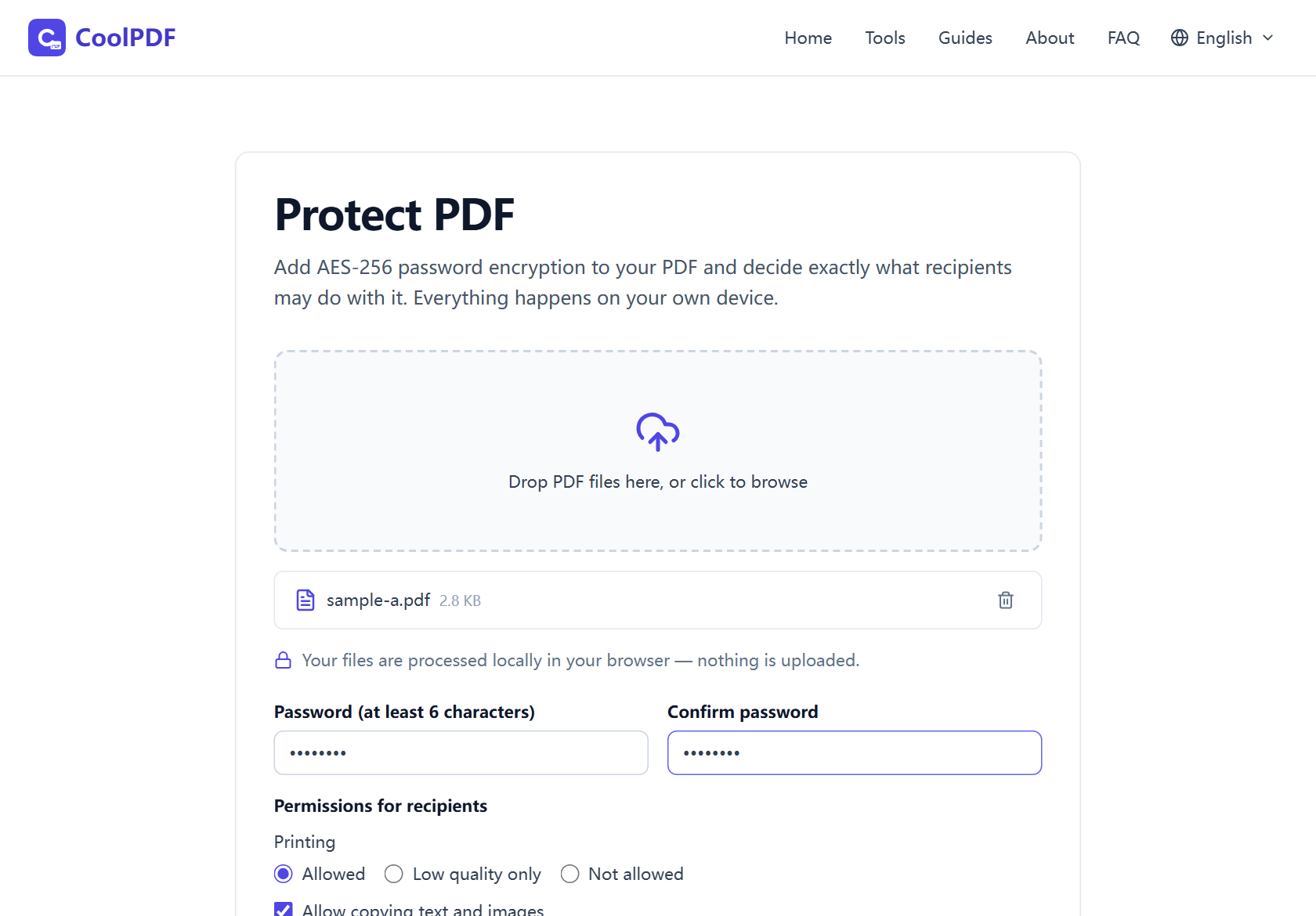
- Open the Protect PDF tool and drop one PDF onto the upload area — or click it to browse. Up to 100 MB on desktop, 50 MB on mobile.
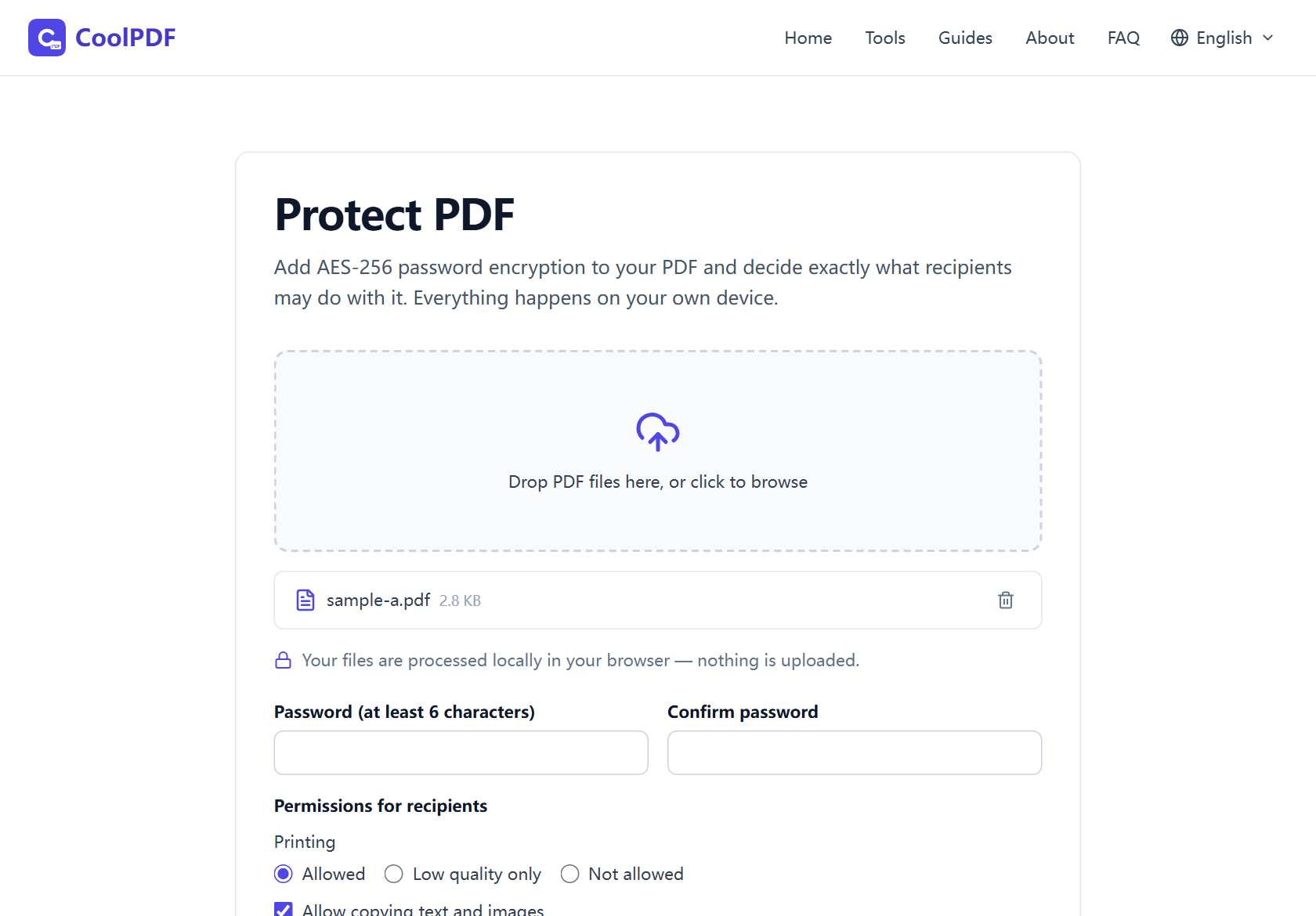
- Type a password of at least 6 characters and repeat it in "Confirm password"; the tool refuses to start if the two do not match.
- Under "Permissions for recipients", pick a printing level and toggle copying, modifying, commenting, page assembly, and screen-reader access.
- Click "Protect PDF", then Download. The encrypted copy is saved as protected.pdf — the original on your device stays untouched.
Step-by-step: protecting a PDF with CoolPDF
Open the Protect PDF tool and add one PDF by dragging it onto the upload area, or click to browse — one file at a time, up to 100 MB on desktop and 50 MB on mobile. The first run downloads the encryption engine (about 1.2 MB), cached for later runs.
Enter your password twice. The minimum is six characters and both fields must match — the tool refuses to start otherwise, saving you from encrypting with a typo. Store it in a password manager: there is no recovery option.
Click "Protect PDF". The file is encrypted with AES-256 inside your browser tab — by qpdf, the same open-source engine available on the command line — and the download card appears with the result, always named protected.pdf. The original is never modified: keep it until the copy opens with the password you expect.
- One PDF per run — up to 100 MB on desktop, 50 MB on mobile
- Password: at least 6 characters, entered twice
- AES-256 encryption, with a randomly generated owner password
- Output is always saved as protected.pdf
Choosing the right permissions
The "Permissions for recipients" panel decides what someone may do after opening the file with the password. Printing offers Allowed, Low quality only, and Not allowed; five checkboxes cover copying text and images, modifying the document, comments and form filling, inserting, rotating, and deleting pages, and text extraction for screen readers.
The defaults suit everyday sharing: full printing, copying, and commenting allowed, but modifying the document or rearranging its pages blocked. Lock everything down — no printing, no copying — for drafts and contracts you want strictly read-only.
Two honest caveats. Permissions are policy, not DRM: Acrobat, Chrome, and Preview respect them, but a non-compliant reader can ignore them. And with AES-256 the PDF spec keeps screen-reader access enabled, so the accessibility checkbox cannot truly turn it off.
Why protecting locally matters more here than anywhere else
Password-protecting a PDF is usually the last step before sending something sensitive — a payslip, a bank statement, a contract. With a server-based tool, the unprotected original crosses the internet first, and the password goes to infrastructure you do not control. The protection step itself becomes the leak.
CoolPDF inverts that: the file is read locally, encrypted inside your browser tab, and saved straight back to your disk. The password never crosses the network — there is no server that could receive it. You can even disconnect after the page loads and keep encrypting; close the tab, and both file and password are gone.
Protect the file you actually meant to send
Encryption goes on last, once the document is final. Need to share only one chapter? Extract it with Split PDF first — an encrypted PDF cannot be split, merged, or compressed until it is unlocked. Same for size: to fit an email attachment limit, run Compress PDF before protecting, not after.
Combining several documents into one dossier? Merge PDF them first, then protect the result. And if you later need the file open again, Unlock PDF removes the password locally, with the same no-upload guarantees.
Other ways
macOS Preview
On a Mac, Preview encrypts PDFs without extra software: File → Export as PDF, tick Encrypt, set an open password. It is free and offline, but macOS-only, and permission controls are basic — print and copy restrictions hide behind Print → Save as PDF → Security Options. CoolPDF brings the same offline privacy to any browser, with the full permission panel on one screen.
Adobe Acrobat (paid)
Acrobat’s Protect tool is the polished paid route: an open password, editing and printing restrictions, certificate-based security. It needs a subscription, and the free online version uploads your file to Adobe’s servers before encrypting. If you already pay for Acrobat it is excellent — otherwise a free, local browser tool covers the same AES-256 ground.
Edge cases
The PDF is already password-protected
qpdf cannot read an encrypted file without its password, so the tool stops with "This PDF is password-protected and cannot be processed here." To change the password or permissions, unlock it with Unlock PDF first — you will need the current password — then protect the unlocked copy. Without the password, ask the sender for an unprotected version.
The file is rejected for size or type
Only PDF files are supported, one at a time, up to 100 MB on desktop and 50 MB on mobile — the whole file is held in device memory during encryption. Oversized? Shrink it with Compress PDF first (compression must come before encryption). Not a PDF at all? Convert it first — JPG to PDF handles scans — then protect the result.
You forgot the password
There is no recovery — that is the point of strong encryption. CoolPDF never sees or stores your password, and the owner password guarding the permissions is random and discarded. Keep it in a password manager, and keep the unprotected original until the copy opens.
Frequently asked questions
Is password-protecting a PDF with CoolPDF really free?
Yes — every tool is free forever, with no quotas, watermarks, or premium tiers. Encryption runs on your device, so there is no server bill to pass on.
How strong is the encryption?
AES-256 — the strongest encryption the PDF standard defines, the same grade banks and governments use. Without the password, the content cannot be read.
What are the limits?
One PDF at a time, up to 100 MB on desktop (50 MB on mobile). Passwords must be at least 6 characters and are entered twice to catch typos.
Is it safe to protect confidential documents here?
Yes. The file and the password never leave your browser. The engine (about 1.2 MB) is cached after first use, so later runs even work offline; closing the tab removes every trace.
Do the permissions work in every PDF reader?
Compliant readers — Acrobat, Chrome, macOS Preview — respect the restrictions, but they are policy rather than DRM. One spec quirk: with AES-256, screen-reader access stays enabled regardless of the accessibility checkbox.
Related guides & tools
Step-by-step: remove a PDF password in your browser — the file and password never leave your device. Free, no sign-up; download the result as unlocked.pdf.
Open the toolReduce PDF file size in your browser with three quality levels (72–300 DPI). No uploads, no sign-up — files never leave your device. Free step-by-step guide.
Open the toolAdd a text or image watermark to every page of your PDF — tiled or centered, with size, color, and opacity controls — right in your browser. Free, no upload.
Open the toolReady to try it?
Open the Protect PDF tool and put this guide into practice — free, no sign-up.
Open Protect PDF