
How to Add a Watermark to a PDF Document
The fastest way to add a watermark to a PDF is to stamp it right in your browser: open the free CoolPDF Watermark PDF tool, drop in your document, type a wording like CONFIDENTIAL or upload a logo, choose tiled or centered placement, click Add Watermark, and download the result as watermarked.pdf. Because CoolPDF processes the file locally on your device, the unwatermarked original is never uploaded anywhere — no account, no queue, no waiting.
Free online tool
Skip the reading and go straight to the tool — no sign-up, no upload.
Open the free Watermark PDF toolQuick steps
- Open the Watermark PDF tool and drag your PDF onto the upload area, or click to browse — one file at a time, up to 100 MB on desktop (50 MB on mobile).
- Keep the type on "Text" and enter your wording (up to 100 characters), or switch to "Image (PNG or JPG)" and upload a logo.
- Set the font size and color (or the image size), pick an opacity, choose Tiled or Centered placement, then click "Add Watermark".
- Click "Download" to save the result as watermarked.pdf. Every page is stamped, and your original file stays untouched.
Step-by-step: adding a text watermark
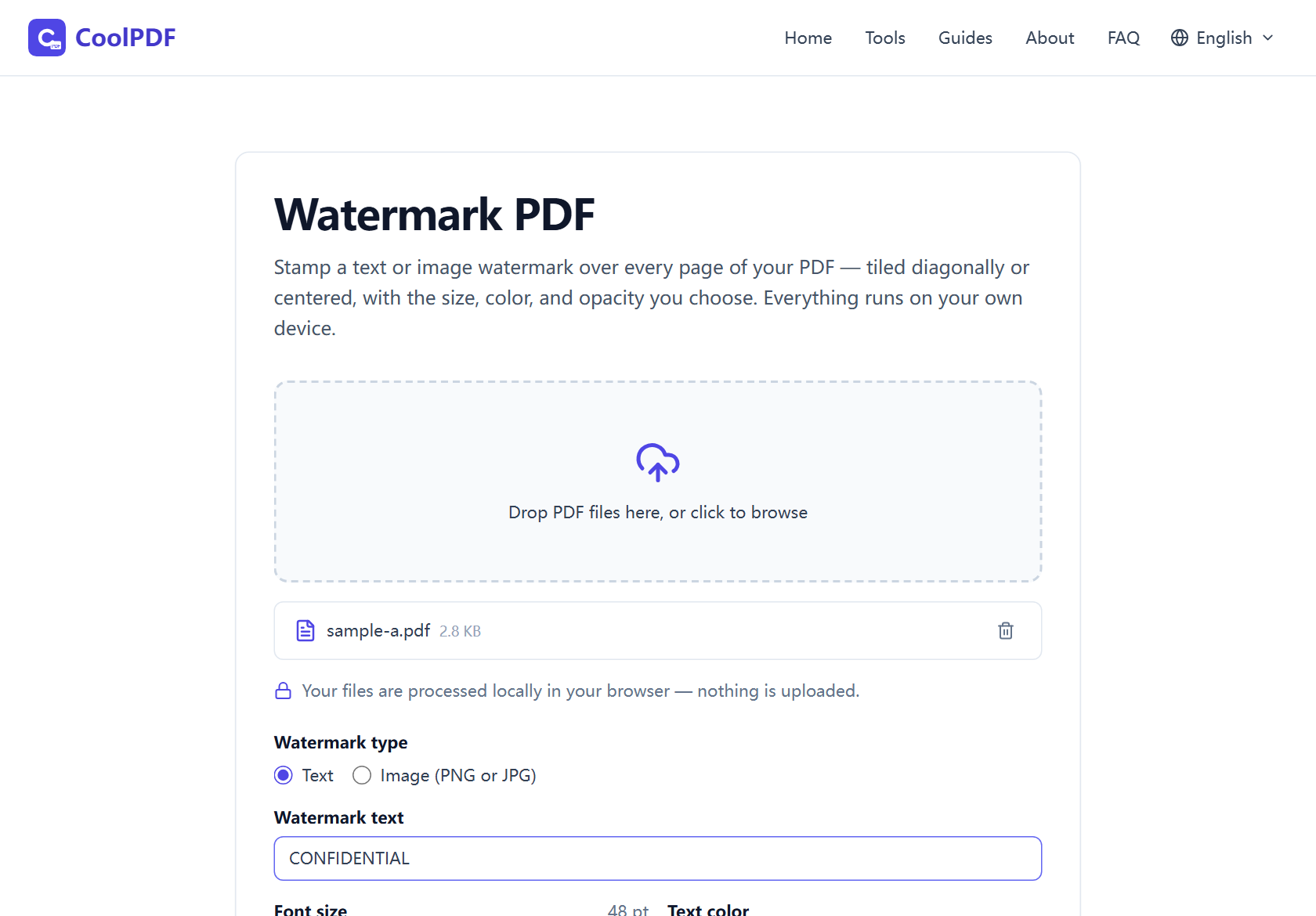
Open the Watermark PDF tool and add your PDF — drag it onto the upload area, or click to browse. With the type set to Text, enter the wording (up to 100 characters; the placeholder suggests CONFIDENTIAL). The font size slider runs 16–96 pt, and the text is drawn with your device’s own fonts, so Chinese, Arabic, or emoji wording works exactly like English.
Opacity runs 5–50% — the 20% default keeps body text legible — and Placement offers Tiled, repeated diagonally so the mark cannot be cropped out, or Centered, a single 45° stamp in the middle. Click "Add Watermark"; the download card appears with the file, always named watermarked.pdf.
- One PDF at a time, up to 100 MB on desktop (50 MB on mobile)
- Text up to 100 characters, font size 16–96 pt
- Opacity 5–50%; tiled or centered at a fixed 45° diagonal
Stamping a logo or image instead
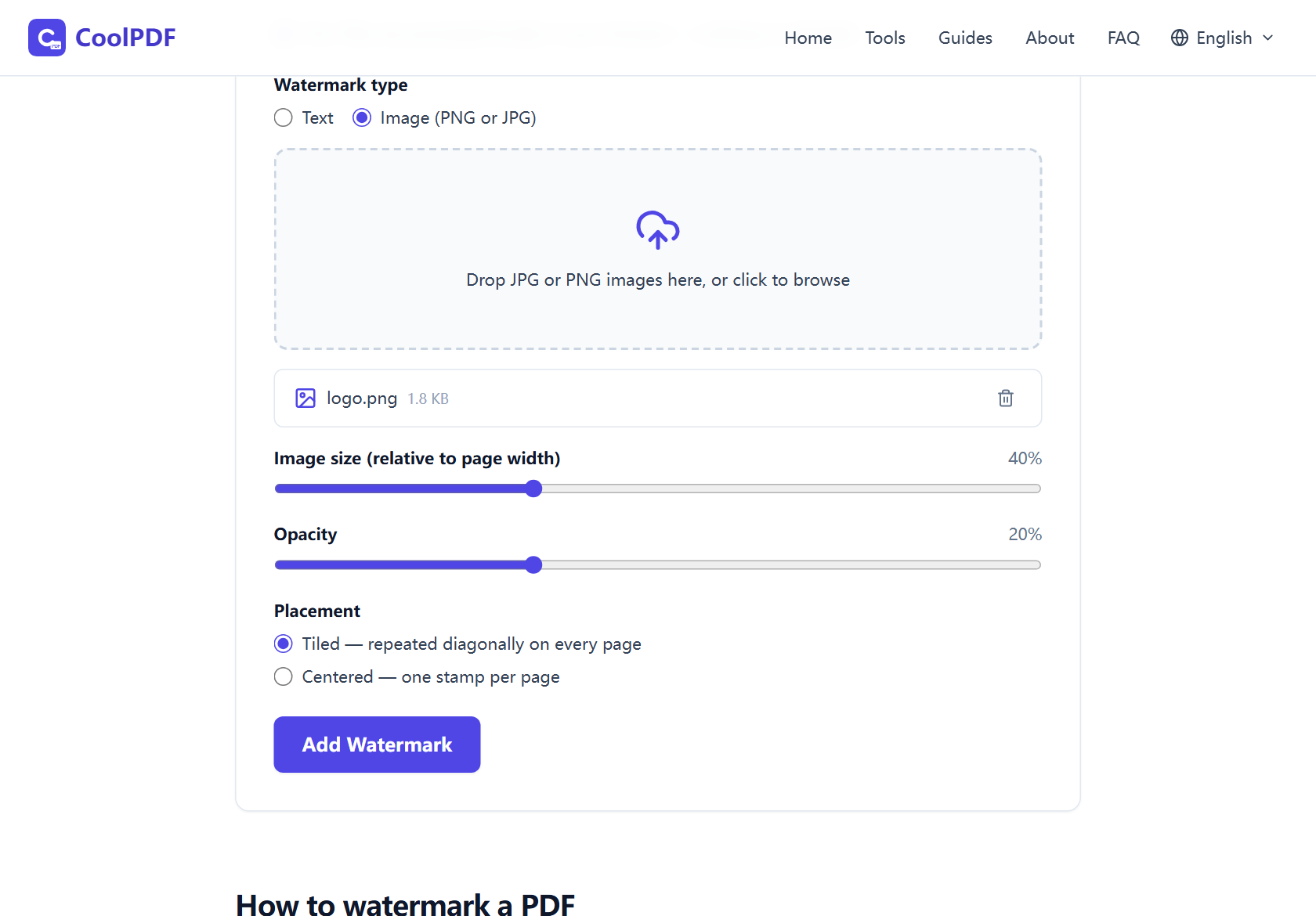
Switch the type to "Image (PNG or JPG)" and a second upload area appears — only PNG and JPG files are accepted. For logos, PNG is the right choice: its transparency is preserved, so the page content stays visible around your mark instead of sitting behind a white box.
The "Image size (relative to page width)" slider scales the stamp from 10% to 100% of the page width, starting at 40%; the aspect ratio is kept, and oversized stamps are shrunk to fit. Centered at low opacity reads like a letterhead logo, Tiled at 30–40% covers the page for drafts.
Watermark sensitive documents without uploading them
A watermark is usually the last step before a document leaves your hands: a draft contract marked CONFIDENTIAL, an ID copy stamped "for the May rental application only". With a conventional online tool, the unprotected original — the most sensitive version — is uploaded to a server before the watermark touches it.
CoolPDF stamps the watermark where the file already is: the wording is rendered with your device’s fonts and drawn onto the pages in the browser tab — nothing is transmitted or stored anywhere else. The Network tab in DevTools shows zero uploads, and closing the tab removes every trace.
Finishing the document: protect, number, and shrink it
Watermarking rarely happens in isolation. A document confidential enough to stamp usually deserves a password too — Password Protect PDF encrypts the watermarked file. For multi-page reports, Page Numbers adds consistent numbering.
The stamp adds almost nothing to the file size — the same image is embedded once and reused on every page. If the result still needs to fit an email limit, Compress PDF brings it back under the limit with the stamp intact.
Other ways
Microsoft Word or Google Docs (before the PDF exists)
If you still have the source document, watermark it there: Word has Design → Watermark with custom text and pictures, and Google Docs offers Insert → Watermark. It costs nothing extra, but only works for documents you authored — a scan or a contract received as a PDF has no source file. CoolPDF stamps the document you actually have.
Adobe Acrobat (paid)
Acrobat Pro has the most complete watermark feature — text or image, rotation, opacity, page ranges — under Edit PDF → Watermark → Add. It needs a paid subscription, and the web version uploads your file to Adobe’s servers. If Acrobat is already installed it is excellent; otherwise a free browser tool covers the everyday CONFIDENTIAL stamp.
Edge cases
The PDF is password-protected
An encrypted PDF cannot be opened for stamping — the tool answers "This PDF is password-protected and cannot be processed here." If you know the password, save an unprotected copy with Unlock PDF, watermark that copy, and re-protect it afterwards. Without the password, ask the sender for an open version.
The file is too large
The limit is 100 MB per file on desktop, 50 MB on mobile — the whole document is held in memory while it is stamped, and oversized files are refused at the upload area. Shrink the document with Compress PDF first, then watermark the compressed version; the stamp is drawn afterwards, so it stays crisp.
Your logo is not a PNG or JPG
Only PNG and JPG are accepted — drop a GIF, SVG, or WebP and the tool answers "Only JPG and PNG images are supported." Export the artwork to PNG first — transparency survives, which is what you want for a logo — and rasterize SVG at a generous resolution so the stamp stays sharp.
Frequently asked questions
Is adding a watermark with CoolPDF really free?
Yes — free forever, with no daily quotas and no premium tier. CoolPDF never adds its own branding: the only watermark is the one you put there.
What are the limits when watermarking?
One PDF at a time, up to 100 MB on desktop (50 MB on mobile). Text allows up to 100 characters at 16–96 pt, opacity runs 5–50%, and image stamps scale from 10% to 100% of the page width.
Is it safe to watermark confidential documents here?
Yes. The file is processed locally in your browser and never uploaded — disconnect from the internet after the page loads and stamping still works. Closing the tab removes every trace.
Do I need to sign up or install anything?
No. There is no account, no email address, and nothing to install — open the tool page, drop in your PDF, and stamp it, in any modern browser on desktop or mobile.
Can I watermark only some pages?
Not directly — the stamp is applied to every page of the document. To watermark one section only, extract those pages with Split PDF, stamp the extracted file, then put everything back together with Merge PDF.
Will the watermark look blurry when people zoom in?
No. Text watermarks are rendered at four times their final size, so wording stays sharp under zoom, and image stamps keep your image’s resolution. The page content underneath is never re-rendered.
Related guides & tools
Password-protect a PDF with AES-256 encryption, right in your browser. Set an open password and recipient permissions — no upload, free, no sign-up.
Open the toolAdd page numbers to a PDF in your browser: six positions, "1 of N" format, custom start page and font size. Free, no uploads, no sign-up.
Open the toolReduce PDF file size in your browser with three quality levels (72–300 DPI). No uploads, no sign-up — files never leave your device. Free step-by-step guide.
Open the toolReady to try it?
Open the Watermark PDF tool and put this guide into practice — free, no sign-up.
Open Watermark PDF