
How to Unlock a PDF You Have the Password To
The fastest way to unlock a PDF you have the password to is to remove the protection right in your browser: open the free CoolPDF Unlock PDF tool, drop in the protected file, type its password, click Unlock PDF, and download the result as unlocked.pdf. The decryption runs locally on your device — the document and the password never leave your computer, and there is no account, no queue, and no watermark.
Free online tool
Skip the reading and go straight to the tool — no sign-up, no upload.
Open the free Unlock PDF toolQuick steps
- Open the Unlock PDF tool and drag the protected PDF onto the upload area — or click it to browse. One file at a time, up to 100 MB on desktop (50 MB on mobile).
- Type the document’s password into "Current password (if needed)". If the PDF opens without one but blocks printing or copying, leave the field blank.
- Click "Unlock PDF". The protection is removed locally, usually in seconds; the first run downloads a ~1.2 MB engine that is cached afterwards.
- Click "Download" to save the result as unlocked.pdf. It now opens in any reader without a password; the original file stays untouched.
Step-by-step: unlocking a PDF with CoolPDF
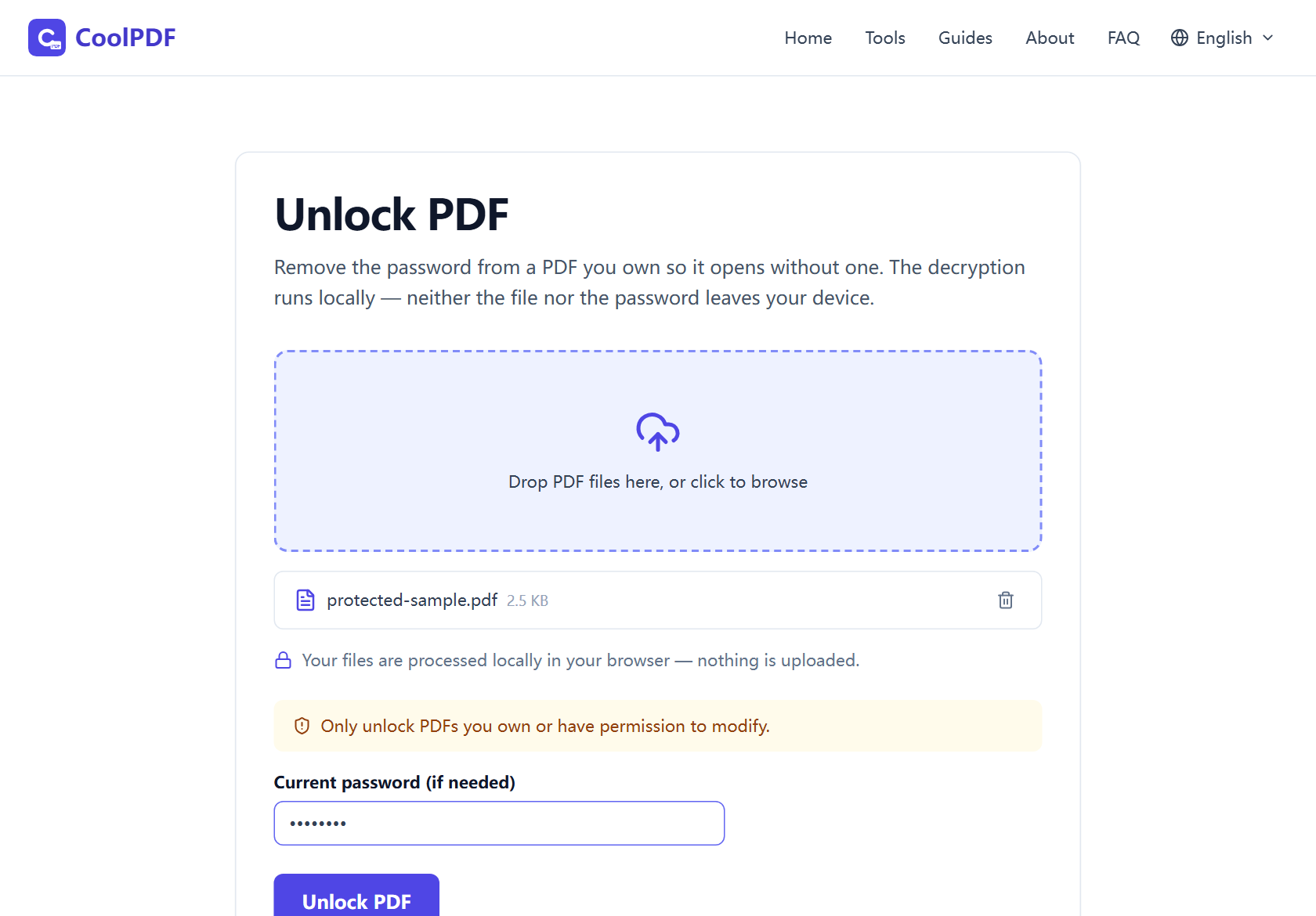
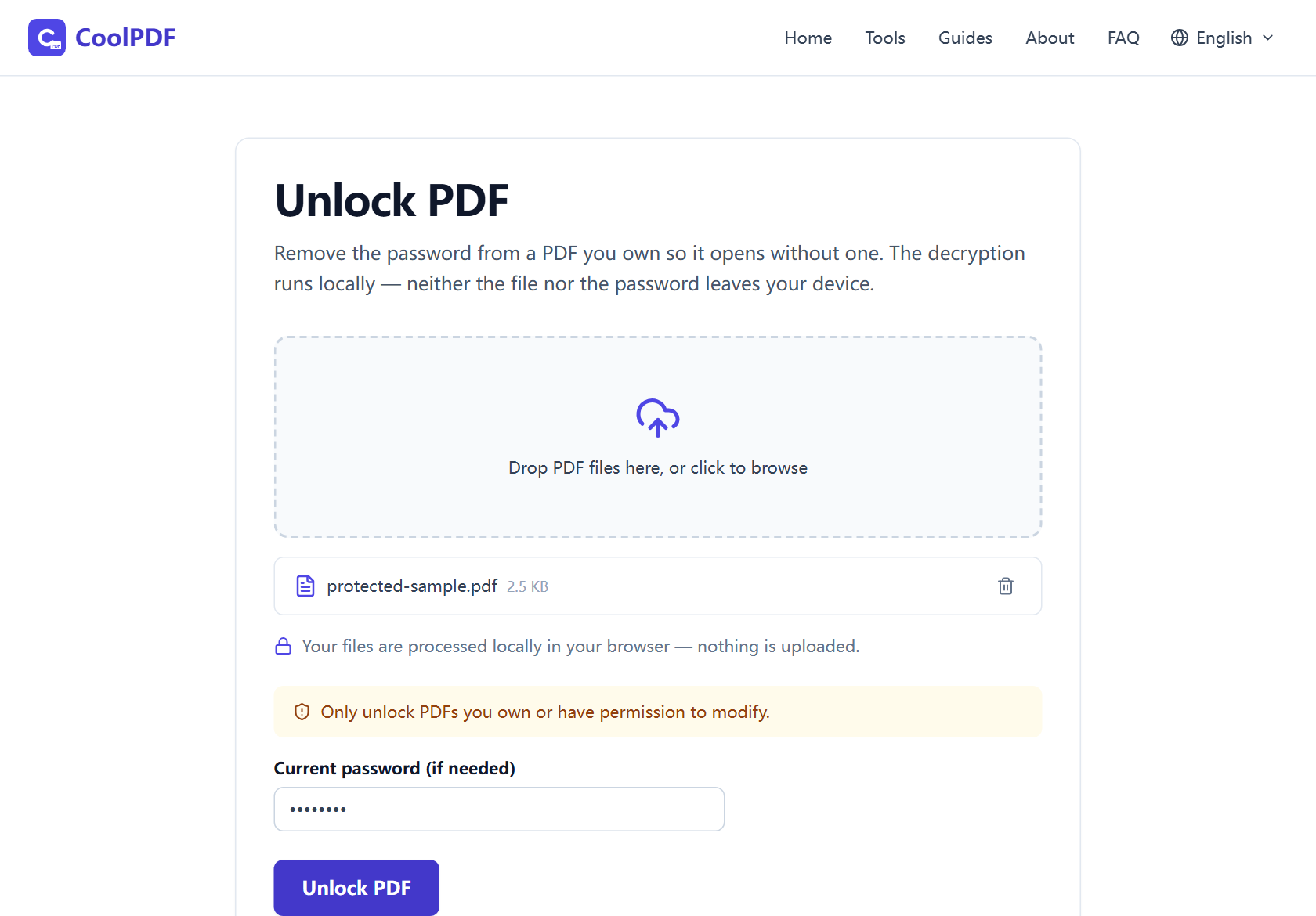
Open the Unlock PDF tool — nothing to install, no account. Drag the protected PDF onto the upload area, or click it to browse. The amber reminder is worth reading once: only unlock PDFs you own or have permission to modify.
Type the password you use to open the document — or, if the file opens fine but refuses to print or copy, leave the field blank: CoolPDF tries an empty password first, which is what those restriction-only files accept. A wrong password brings up "The password is incorrect. Please try again." — retry without re-adding the file.
Click "Unlock PDF". Decryption runs in a background worker, so the page stays responsive; the first use downloads about 1.2 MB of engine, cached afterwards. When the download card appears, save the result — always unlocked.pdf. The original file is never modified.
- One PDF per run, up to 100 MB on desktop, 50 MB on mobile
- Password field can stay blank for restriction-only files
- Output is always saved as unlocked.pdf
Unlocking bank statements without handing over the password
The PDFs people unlock are usually the sensitive ones: bank statements, payslips, tax drafts. A conventional online unlocker asks you to upload the still-protected file and type its password into someone else’s web form — the two things that should never travel together, sent together.
CoolPDF removes protection where the file already lives: the document is read from your own disk, decrypted with the password you type locally, and saved straight back — no upload, no password log, no copy left behind. You can even disconnect after the page loads and keep unlocking. Close the tab, and no trace of the file or the password remains.
What unlocking removes — and what it leaves alone
An encrypted PDF can carry two protections at once: an open password that gates the document, and permission flags that block printing, copying, or editing. Unlocking strips the whole encryption layer in one pass — the saved copy opens without a password and carries no restrictions.
Everything else stays as it was — pages, text, images, annotations, and bookmarks are not re-rendered or recompressed, and the output opens in any reader. To protect it again later with a stronger password, run it through Protect PDF and pick your own.
What to do with the unlocked copy
A locked PDF refuses to cooperate with other tools — you cannot merge a protected statement into a tax dossier or shrink a protected scan for email. Once unlocked, those jobs open up: combine files in Merge PDF, or extract the pages you need with Split PDF.
If the unlocked copy is headed for an inbox, Compress PDF brings it to attachment-friendly sizes. For a contract about to circulate, Watermark PDF and Page Numbers finish the job in the same tab.
Other ways
macOS Preview
On a Mac, open the locked PDF in Preview, enter the password, then File → Export as PDF saves an unprotected copy. Free, built in, and offline — but macOS-only, and the export re-saves the whole document rather than just lifting the encryption. CoolPDF gives the same offline privacy in any browser, on any OS.
The Chrome print workaround
Open the PDF in Chrome, enter the password, press Ctrl+P (Cmd+P on a Mac), and "Save as PDF". It costs nothing, but printing re-renders the document — form fields are flattened, and links or bookmarks can be lost. CoolPDF removes only the encryption and leaves the file itself untouched.
Adobe Acrobat (paid)
In Acrobat Pro you enter the password and set the security method to "No Security". It needs a subscription and an install or Adobe account, and the web version uploads both file and password to Adobe’s servers. If you already pay for Acrobat it is excellent; otherwise a free browser tool covers the same ground with no install, account, or upload.
Edge cases
The PDF opens fine, but printing or copying is blocked
That is a restriction-only file: an owner password with no open password, so any reader can display it. Leave the password field blank and click Unlock PDF — the tool tries an empty password first, which is what these files accept — and the unlocked copy prints and copies normally. (If you see "This PDF is not password-protected, so there is nothing to unlock," the file was never encrypted.)
"The password is incorrect. Please try again."
Check the mundane culprits first: caps lock, wrong keyboard layout, or a trailing space pasted from an email. Fix it and retry — the file stays loaded. If the password is truly forgotten, there is no legitimate way back: CoolPDF is not a password cracker, and AES-256 cannot realistically be guessed. Ask the sender or your bank for an unprotected copy.
The file is over the size limit
Unlocking holds the whole document in your device’s memory, hence the 100 MB desktop / 50 MB mobile limit. For oversized files, the free qpdf command line does the same job offline with no size cap: qpdf --decrypt --password=YOURS in.pdf out.pdf — the same qpdf CoolPDF compiles to WebAssembly.
Frequently asked questions
Is unlocking a PDF with CoolPDF really free?
Yes — free forever, no daily quotas, watermarks, or premium tiers. The decryption runs on your own device, so there is no server bill to pass on.
I forgot the password. Can CoolPDF crack it?
No. CoolPDF removes protection only when you know the current password — it is not a cracking tool, and AES-256 cannot realistically be guessed. Ask the sender for an unprotected copy.
Is it legal to unlock a PDF?
Yes — for documents you own or have permission to modify, like your own archived statements. Removing protection from files you have no rights to may violate law or contracts.
Is it safe to unlock confidential documents here?
Yes. The file is decrypted locally in your browser; neither the document nor the password is ever sent anywhere. Disconnect after the page loads and it still works; closing the tab removes every trace.
Will unlocking change the document?
No. Only the encryption layer is removed — every page, image, annotation, and bookmark stays exactly as it was, and the unlocked file opens in any PDF reader.
Related guides & tools
Password-protect a PDF with AES-256 encryption, right in your browser. Set an open password and recipient permissions — no upload, free, no sign-up.
Open the toolStep-by-step: merge PDF files into one document right in your browser. Free, no uploads, no sign-up — reorder, combine up to 20 files, download in seconds.
Open the toolReduce PDF file size in your browser with three quality levels (72–300 DPI). No uploads, no sign-up — files never leave your device. Free step-by-step guide.
Open the toolReady to try it?
Open the Unlock PDF tool and put this guide into practice — free, no sign-up.
Open Unlock PDF