
How to Split a PDF into Pages or Ranges (Free)
The fastest way to split a PDF is to do it right in your browser: open the free CoolPDF Split PDF tool, drop in one document, choose a mode — every page separately, custom ranges like 1-3, 5-8, or equal chunks — click Split PDF, and download the parts. Because the splitting runs locally on your device, the file is never uploaded: no server, no account, no queue, and no watermark on the output.
Free online tool
Skip the reading and go straight to the tool — no sign-up, no upload.
Open the free Split PDF toolQuick steps
- Open the Split PDF tool and drag one PDF onto the upload area — or click it to browse your device.
- Choose a split mode: "Extract all pages", "Split by ranges" (type something like 1-3, 5-8), or "Split every N pages" (set the pages-per-file number).
- Click "Split PDF". The document is divided locally in your browser, usually within seconds.
- Click "Download" — a single part comes as a PDF; several parts are bundled into split.zip. The original file stays untouched.
Step-by-step: splitting a PDF with CoolPDF
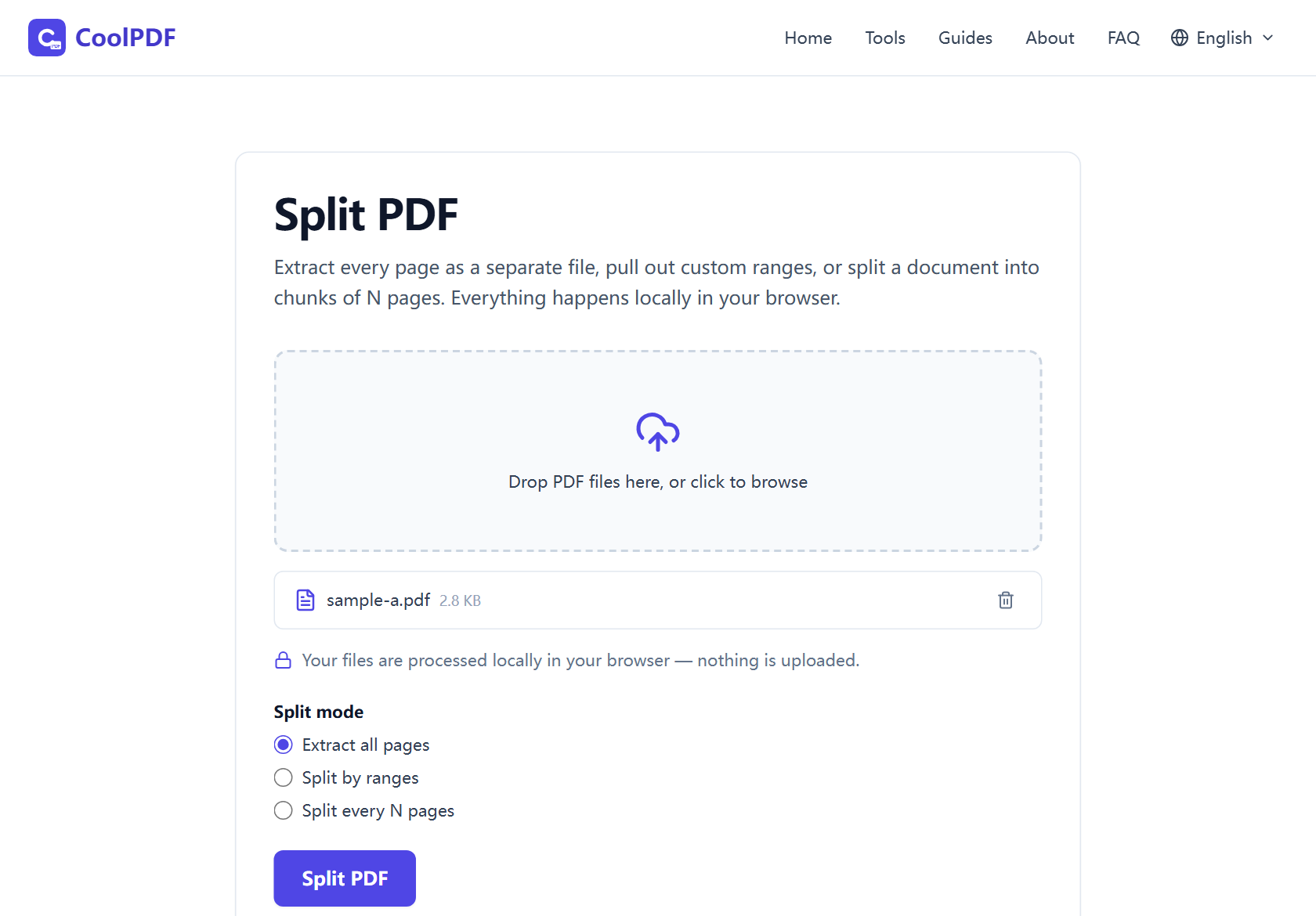
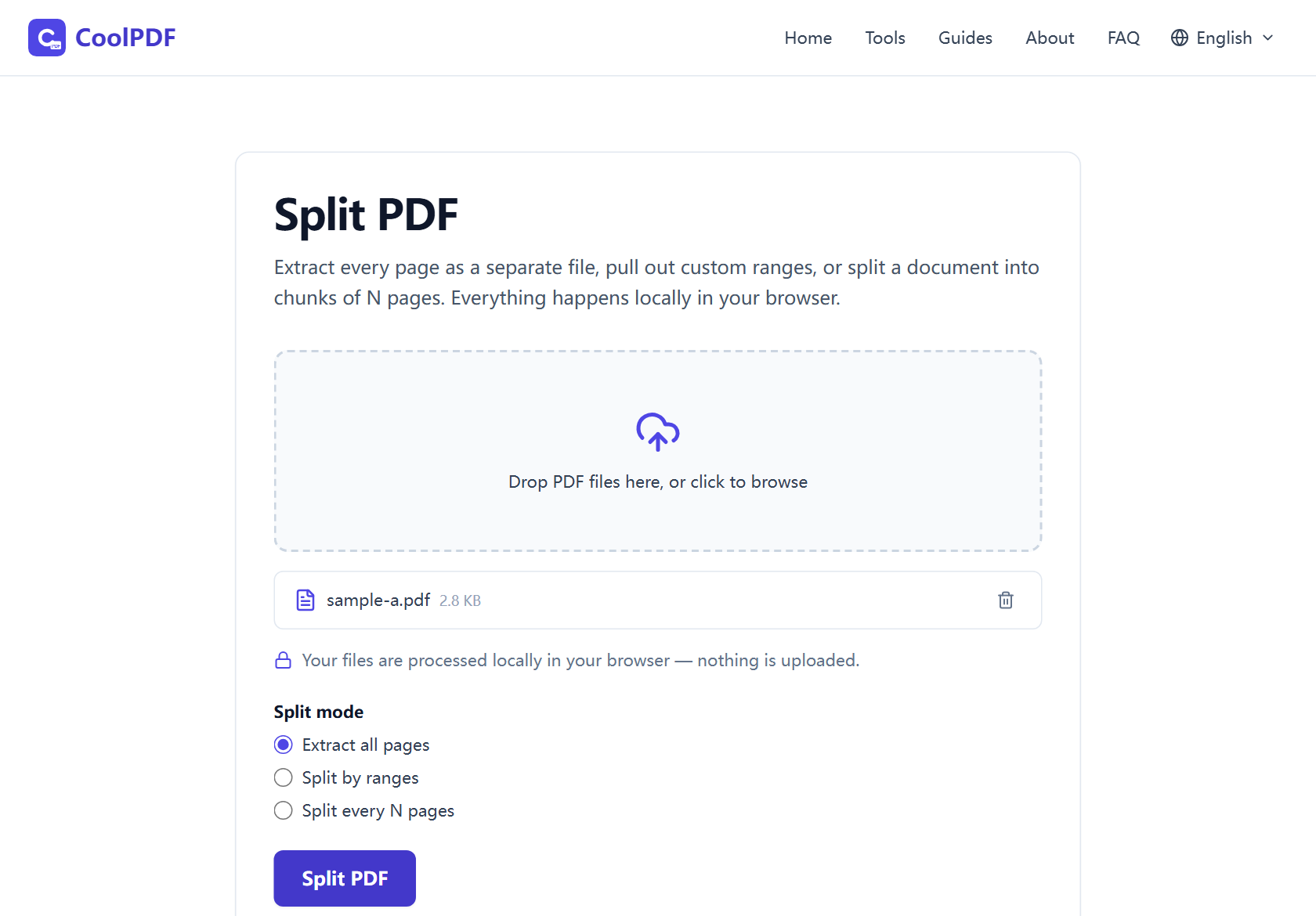
Open the Split PDF tool — nothing to install, no account. Drag one PDF onto the upload area, or click it to browse: a single file, up to 100 MB on desktop (50 MB on mobile). It appears as a row showing its name and size; the trash icon removes it if you grabbed the wrong one.
Pick a split mode. "Extract all pages" makes every page its own one-page PDF: page-1.pdf, page-2.pdf, and so on. "Split by ranges" takes an expression like 1-3, 5-8 and makes one PDF per segment — pages-1-3.pdf, pages-5-8.pdf. "Split every N pages" cuts equal chunks: set Pages per file to 2 and a ten-page scan becomes five files, pages-1-2.pdf through pages-9-10.pdf.
Click "Split PDF". Everything runs on your device, so speed depends on the document, not your connection. One part downloads directly as a PDF; two or more are bundled into an archive named split.zip. The original file is never modified.
- One PDF at a time, up to 100 MB on desktop (50 MB on mobile)
- "Extract all pages" supports documents up to 500 pages; the other modes have no page cap
- One part downloads as a PDF; several parts come as split.zip
- Pages are copied unchanged — no recompression, no watermark
Writing page ranges that work
Separate segments with commas — 1-3, 5, 8-10 makes three PDFs: pages 1-3, page 5 alone, and pages 8-10. Spaces are ignored, a trailing comma does no harm, and a segment typed twice is extracted only once. File names follow the segment: pages-1-3.pdf for a range, page-5.pdf for a single page, with a numeric suffix if two names collide.
The parser also understands non-English keyboards — Chinese commas and enumeration marks, semicolons, full-width dashes and digits, even tildes — so 1-3,5 is read as 1-3, 5. It rejects a reversed range like 8-5, letters, or a page beyond the end of the document, with a clear error and no processing until the range is fixed.
Splitting is usually about sharing less
People rarely split a PDF for their own filing — they do it to hand over a piece of something larger: one invoice out of a bookkeeping export, the two relevant pages of a long contract, a chapter from a 300-page scan. With a conventional online splitter, sharing less of the document starts with uploading all of it to someone else’s server.
CoolPDF removes that contradiction. The splitting engine is delivered to your browser, and the file is read, divided, and saved on your own machine — no byte of it crosses the network. That is safe enough for payslips, tax records, and HR paperwork, on a work laptop or public Wi-Fi. Load the page, go offline, and it still works; close the tab and nothing remains.
What to do with the split parts
A split is often the middle of a job, not the end. Extracted pages going out as email attachments can be shrunk with Compress PDF. If you pulled pages to assemble a new packet, Merge PDF combines them with cover letters and appendices in the order you choose.
Scans often need a second pass: Rotate PDF fixes the one landscape page that came out sideways, and Organize PDF rearranges or deletes pages visually. Sending a sensitive extract on its own? Protect PDF adds a password first.
Other ways
macOS Preview
On a Mac, Preview extracts pages without extra software: open the PDF, show the thumbnail sidebar, select the pages you want, and drag them to the desktop to make a new PDF of just those pages. It is free, offline, and private, but macOS-only, and selecting scattered ranges by clicking thumbnails gets tedious. CoolPDF’s typed ranges (1-3, 5-8) do the same selection in any browser, on any OS.
Print to PDF
Every operating system has a virtual PDF printer: open the file, choose Print, pick Microsoft Print to PDF or Save as PDF, and enter a page range. It works in a pinch, but printing re-renders the document — links, form fields, and bookmarks are flattened — and each range is a separate print job. A real splitter like CoolPDF keeps the original page data intact.
Adobe Acrobat (paid)
Acrobat’s Organize Pages and Split tools are the polished paid option, able to split by page count, file size, or top-level bookmarks. They require a subscription and a desktop install, and the web version uploads your files to Adobe’s servers. If Acrobat is already on your machine it is excellent — otherwise a free, no-upload browser tool covers everyday splitting.
Edge cases
The PDF is password-protected
An encrypted document cannot be split until its protection is removed — the tool reports "This PDF is password-protected and cannot be processed here." If you know the password, run the file through Unlock PDF first and split the unprotected copy. Without the password, ask the sender for an open version — there is no legitimate way around someone else’s protection.
The range is rejected
A reversed range (8-5), letters, or an empty field produces "Invalid page range. Use numbers and hyphens, for example 1-3, 5.", and a page beyond the document length gives "The page range exceeds the number of pages in the document." Nothing is processed until the expression parses — spaces, stray commas, and full-width punctuation are all fine.
The file is too large, or the document too long
Over 100 MB (50 MB on mobile) the upload is refused — shrink the file with Compress PDF first, then split the smaller copy. "Extract all pages" also caps at 500 pages, since every output is held in memory until the ZIP is built; longer documents can use ranges or every-N-pages mode, which have no page cap.
Frequently asked questions
Is splitting PDFs with CoolPDF really free?
Yes — every tool on CoolPDF is free forever, with no daily quotas, watermarks, or premium tiers. The split runs on your own device, so there is no server bill to pass on to you.
What are the limits when splitting?
One PDF at a time, up to 100 MB on a desktop computer (50 MB on mobile). "Extract all pages" handles documents up to 500 pages; splitting by ranges or every N pages has no page-count cap.
Is it safe to split confidential documents here?
Yes. The file is processed locally in your browser and is never uploaded to any server. You can disconnect from the internet after the page loads and the split still works; closing the tab removes every trace of the document.
Do I need to sign up or install anything?
No. There is no account, no email address, and nothing to install. Open the tool page, add your PDF, and split — it works in any modern browser, on desktop and mobile.
Will splitting reduce the quality of my PDF?
No. Pages are copied into the new documents at the object level — nothing is recompressed or re-rendered. Text stays sharp and selectable, images keep their original resolution, and annotations are carried over unchanged.
Related guides & tools
Step-by-step: merge PDF files into one document right in your browser. Free, no uploads, no sign-up — reorder, combine up to 20 files, download in seconds.
Open the toolRearrange PDF pages with drag and drop, rotate or delete pages, and download the result — all in your browser. Free, no uploads, no sign-up.
Open the toolReduce PDF file size in your browser with three quality levels (72–300 DPI). No uploads, no sign-up — files never leave your device. Free step-by-step guide.
Open the toolReady to try it?
Open the Split PDF tool and put this guide into practice — free, no sign-up.
Open Split PDF