
How to Convert PDF to Markdown (Local, Free)
The fastest way to convert a PDF to Markdown is to do it locally in your browser: open the free CoolPDF PDF to Markdown tool, drop in your file, click Convert to Markdown, and download the result as download.md. Headings, paragraphs, and lists are detected automatically, and repeating headers and footers are stripped. Because the extraction runs entirely on your own device, the document is never uploaded — no account, no queue, and no copy left on someone else’s server.
Free online tool
Skip the reading and go straight to the tool — no sign-up, no upload.
Open the free PDF to Markdown toolQuick steps
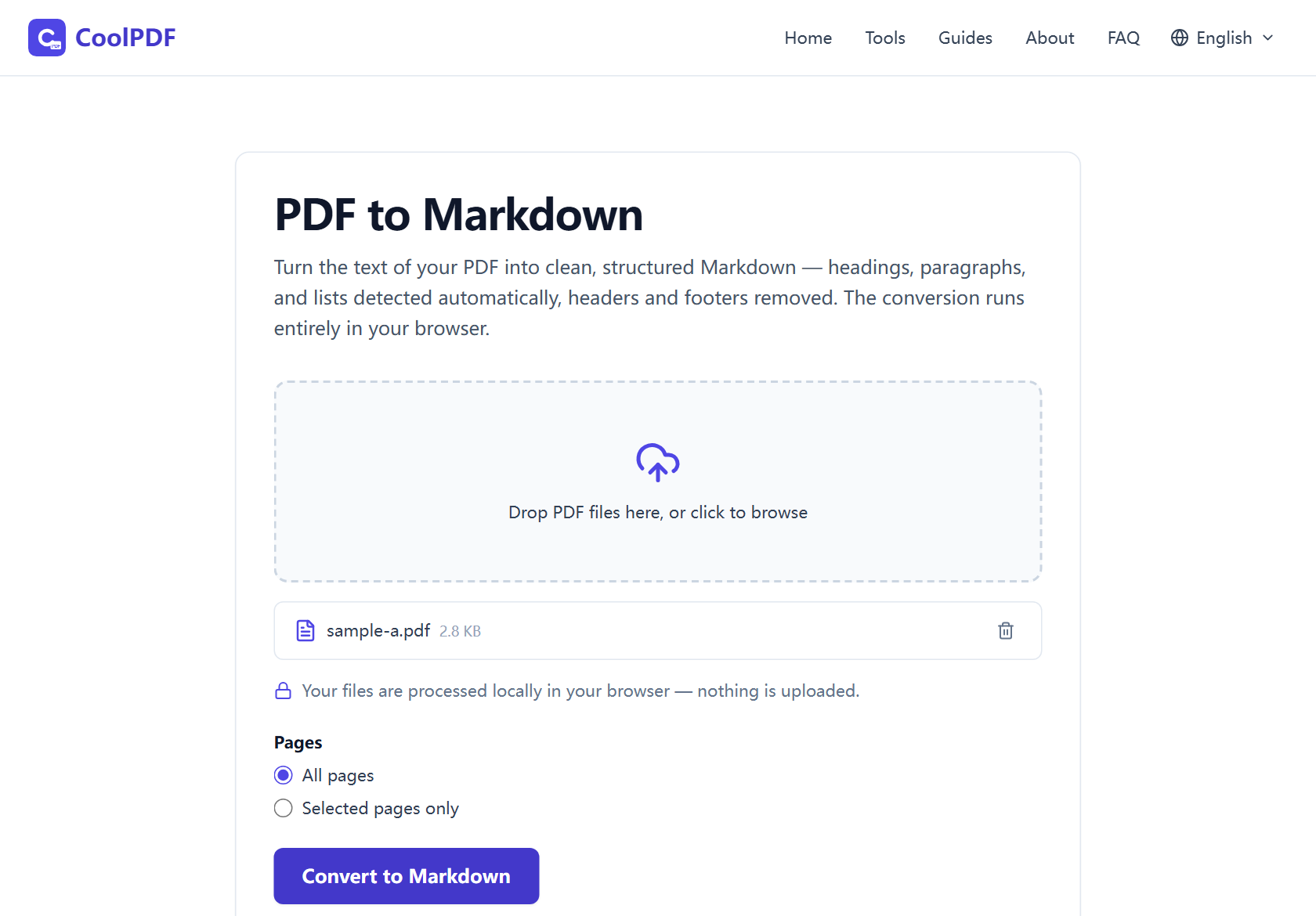
- Open the PDF to Markdown tool and drag one PDF onto the upload area — or click it to browse your device. Files up to 100 MB work on desktop, 50 MB on mobile.
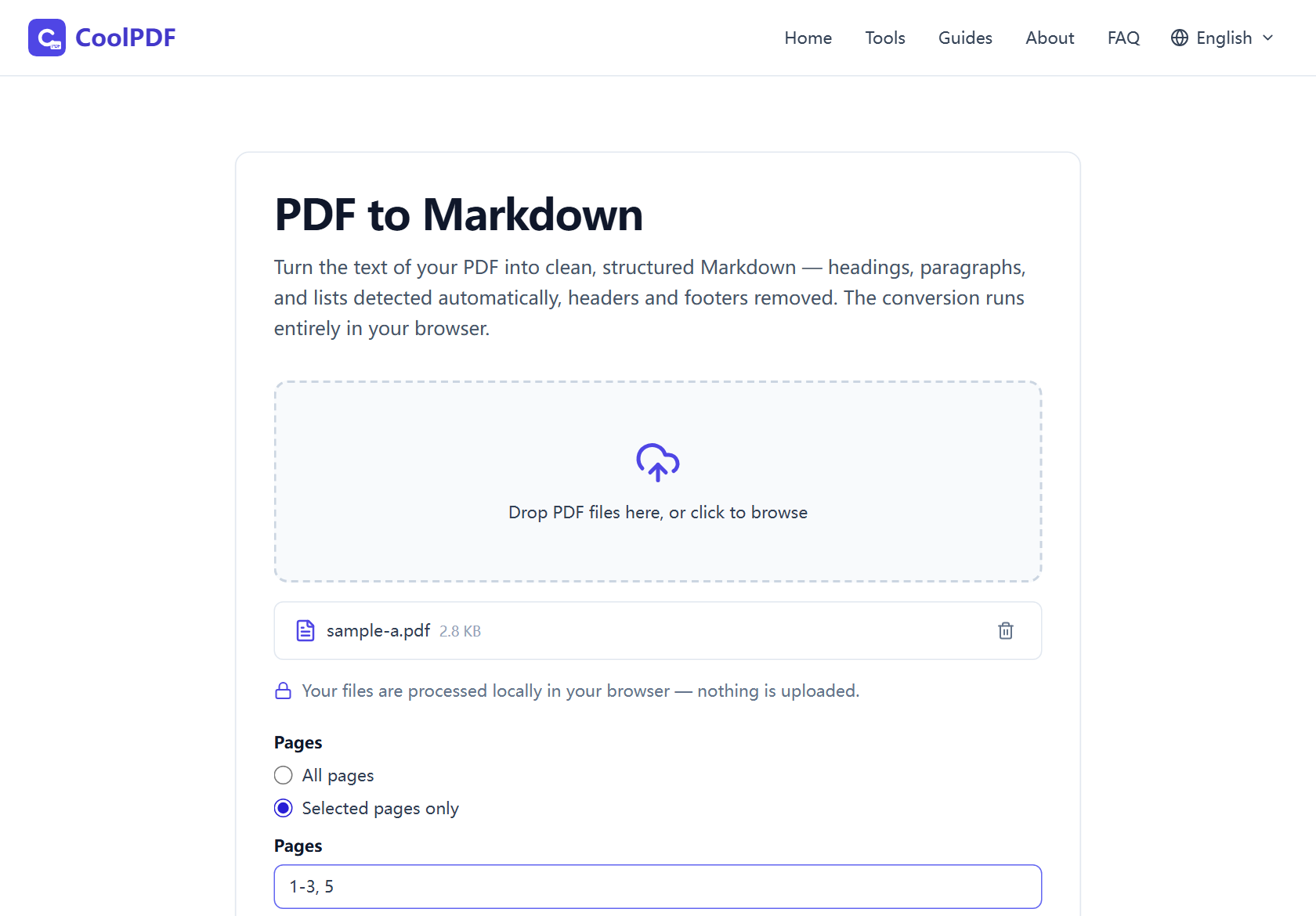
- Under Pages, keep "All pages" selected, or switch to "Selected pages only" and type a range such as 1-3, 5.
- Click "Convert to Markdown". The text is extracted and structured locally in your browser, usually within a few seconds.
- Click "Download" on the result card to save the file as download.md, then open it in any editor or notes app.
Step-by-step: converting with CoolPDF
Open the PDF to Markdown tool — nothing to install, no account to create. Drag a file onto the upload area, or click it to pick one from a file dialog.
Decide how much of the document you need. The default, "All pages", converts everything. Switch to "Selected pages only" and a text field appears for a range like 1-3, 5 — useful when you only need chapter 3 of a long manual.
Click "Convert to Markdown" and give the browser a moment. The work happens on your device, so the time depends on the document, not your connection. When the download card appears, click Download; the result is always saved as download.md, and the original PDF is never modified.
- One PDF per conversion
- Up to 100 MB per file on desktop, 50 MB on mobile
- Page ranges like 1-3, 5 for partial conversions
- Output is always saved as download.md
What the Markdown output looks like
The converter reads the PDF’s text layer and rebuilds structure from visual cues. The most common font size is treated as body text; noticeably larger lines become headings — #, ##, or ### depending on how much bigger they are. Bullet lines (•, -, *) become "- " items, numbered lines keep their numbers, and wide vertical gaps start new paragraphs.
On top of that, short text repeated in the same spot on most pages — page numbers, running titles, confidentiality footers — is detected and dropped. Detection is heuristic, so treat the result as a strong first draft: skim the headings once and fix the occasional misjudged line. One more limit: images are skipped; the .md file is text only. Export figure pages with PDF to JPG if you need them.
Why local conversion matters for unpublished documents
PDF to Markdown is rarely casual work. People convert draft papers to keep editing in Obsidian, internal reports to quote in documentation, contracts to feed into an AI assistant clause by clause. The popular routes — cloud converters, "chat with your PDF" services — all start the same way: upload the document to someone else’s server and trust their retention policy.
CoolPDF runs the extraction where the file already is: a PDF engine in your browser tab reads the text layer, builds the Markdown in memory, and saves it straight to disk — nothing is transmitted. That makes it safe for manuscripts, client material, or anything under NDA, even on a work laptop or hotel Wi-Fi. Load the page, go offline, and it still converts; close the tab, and nothing remains.
Combining the conversion with other tools
Say you only need the methods chapter of a thesis as Markdown — "Selected pages only" does that in place, no separate splitting step. If the PDF is too large to load, shrink it with Compress PDF first; the text layer survives compression, so the Markdown comes out the same.
If the file is password-protected, remove the protection with Unlock PDF — you will need the password — and convert the unlocked copy. Need figures as well as text? PDF to JPG turns any page into an image you can embed.
Other ways
Copy and paste from any PDF reader
Every PDF reader lets you select text and copy it into a Markdown editor. It is free and offline, but you get raw text with no structure — headings, lists, and paragraph breaks must be rebuilt by hand, and multi-column pages paste in a scrambled order. Fine for a paragraph or two; for a whole document, CoolPDF’s automatic structure detection saves real time.
Pandoc, with a DOCX detour
Pandoc is the power tool for document conversion, with one caveat: it cannot read PDF files. The usual route is PDF to DOCX in Word or LibreOffice, then Pandoc on the command line — free, offline, and scriptable, but two conversions plus some terminal comfort. CoolPDF covers the same ground in one step, with nothing to install.
AI assistants and cloud converters
ChatGPT-style assistants and online converters will turn an uploaded PDF into Markdown, often with impressive cleanup. The trade-offs are the upload itself, size caps on free tiers, and accounts or daily quotas. For a public manual that may be fine; for anything confidential, a local tool that never transmits the file is the safer default.
Edge cases
You get "scanned images with no extractable text"
Scans are photos of pages with no text layer to read, so the tool stops with "This PDF appears to be scanned images with no extractable text." Run the file through OCR software first — many scanner apps can add a text layer — then convert the OCRed copy.
The PDF is password-protected
An encrypted PDF cannot be opened at all without its password, and the conversion fails with "This PDF is password-protected and cannot be processed here." If the file is yours and you know the password, save an unprotected copy with Unlock PDF first, then convert that copy.
The file is too large, or the page range is rejected
The limit is 100 MB per file on desktop and 50 MB on mobile — the document is held in your device’s memory while it is read. Over the ceiling? Compress PDF usually brings the file under it. If the Pages field rejects your input, check the format — numbers, hyphens, and commas, like 1-3, 5 — and that the pages exist in the document.
Frequently asked questions
Is converting PDF to Markdown with CoolPDF free?
Yes — every CoolPDF tool is free forever, with no watermarks, daily quotas, or premium tier. The conversion runs on your own device, so there is no server bill to pass on.
What are the limits?
One PDF at a time, up to 100 MB per file on desktop and 50 MB on mobile. There is no page-count limit — long documents just take longer, because every page is read locally.
Is it safe to convert confidential documents here?
Yes. The file is read and converted entirely in your browser and never uploaded anywhere. Disconnect from the internet after the page loads and it still works; closing the tab removes every trace.
Do I need to sign up or install anything?
No. There is no account, no email address, and nothing to install. Open the tool page, add your PDF, and convert — it works in any modern browser, on desktop and mobile.
How accurate is the heading detection?
Headings are inferred from font sizes: the most common size is treated as body text, and noticeably larger lines become #, ##, or ###. It is a heuristic, so expect a very good first draft rather than perfection — a one-minute skim catches the rare misjudged line.
Related guides & tools
Step-by-step: remove a PDF password in your browser — the file and password never leave your device. Free, no sign-up; download the result as unlocked.pdf.
Open the toolReduce PDF file size in your browser with three quality levels (72–300 DPI). No uploads, no sign-up — files never leave your device. Free step-by-step guide.
Open the toolTurn PDF pages into JPG or PNG images at 72, 150, or 300 DPI — free, in your browser, no uploads, no sign-up. Includes DPI and page-range tips.
Open the toolReady to try it?
Open the PDF to Markdown tool and put this guide into practice — free, no sign-up.
Open PDF to Markdown